
This is the continuation of the AWS learning series. In this article, we will learn how to create an AWS IAM user, grant management console access, and also provide permissions to it by attaching policies.
Are you ready with your laptop and AWS account to create our first AWS S3 bucket?
Don’t worry if you have not created your AWS account. This link will guide you to set up your first AWS account.
At first, I wrote the user creation steps in my upcoming article for AWS S3 bucket creation. But it made it too long, hence I am splitting the user creation as a separate article.
Now that being said, let's begin!
1) Creating our first AWS IAM user
Log in to your root account, create a new user and assign permissions for the newly created user.
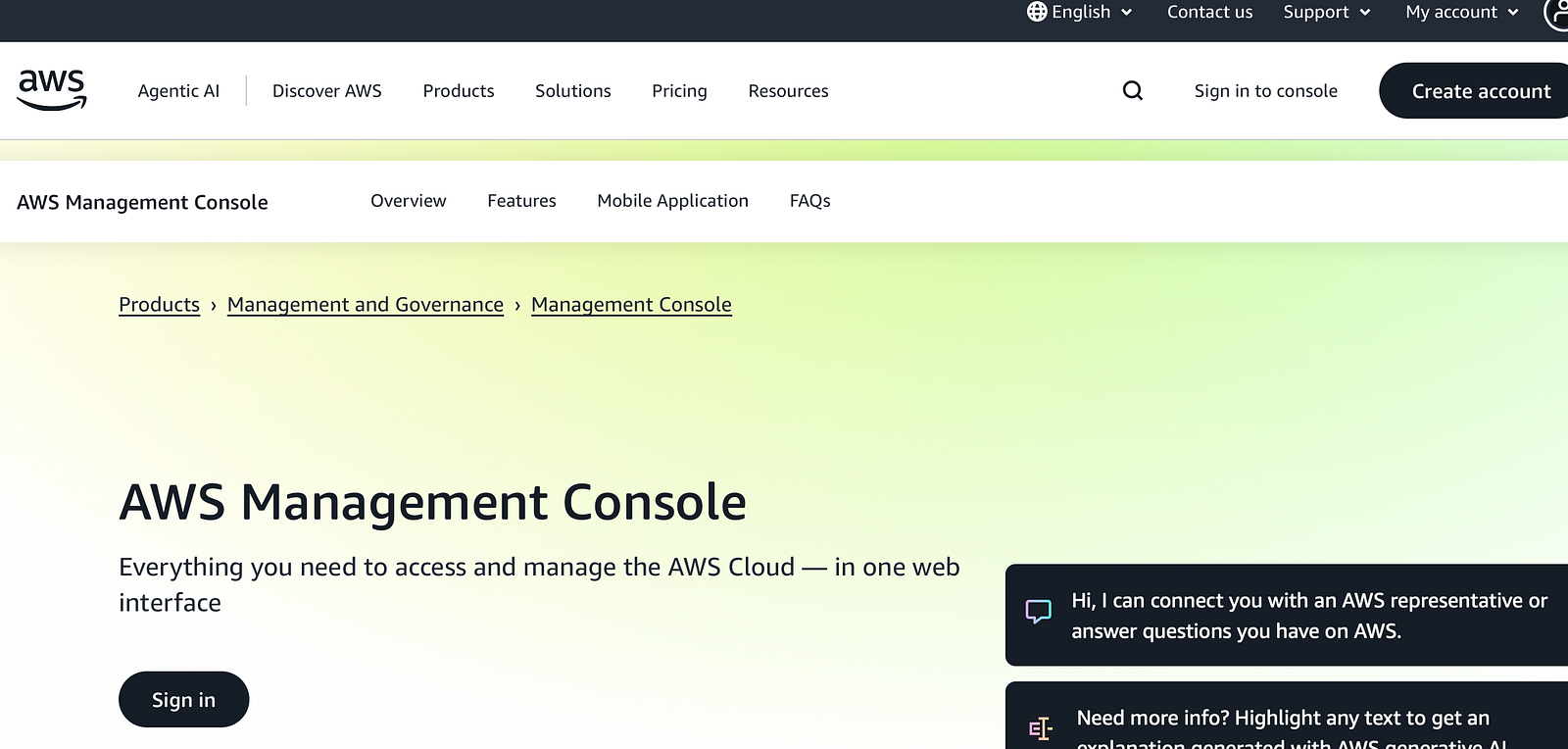
Click here to go to the AWS Management console
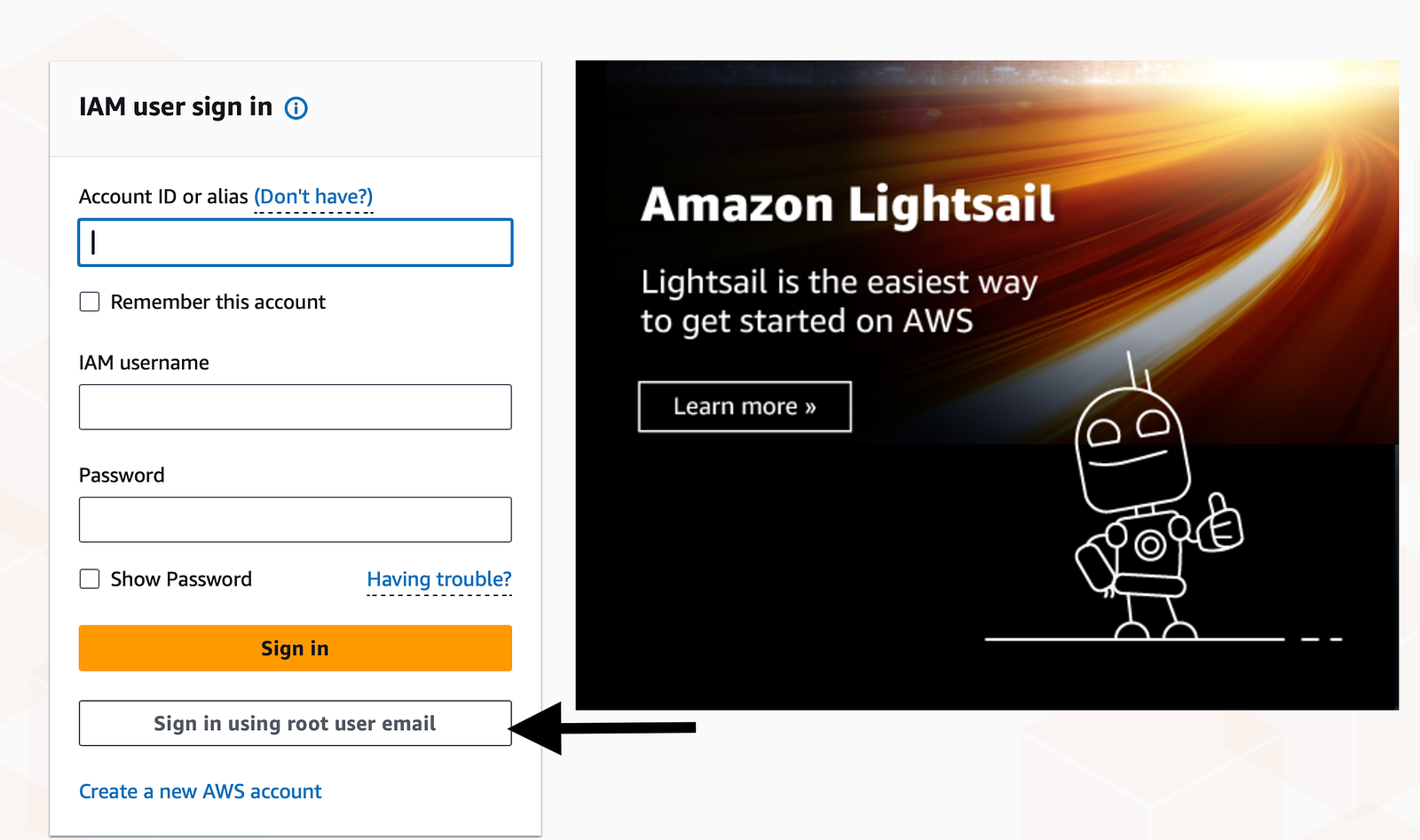
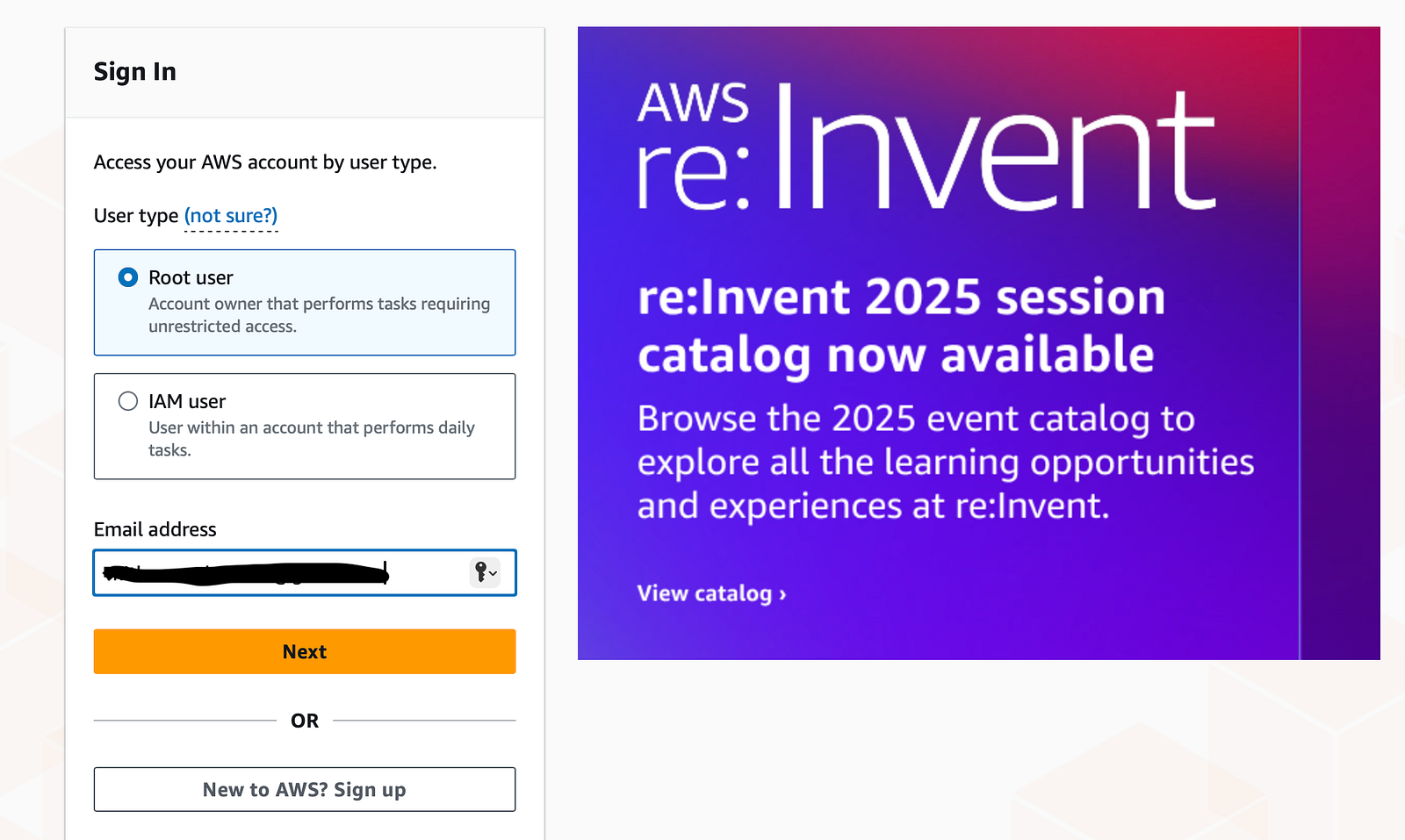
To create a new user, we will have to log in as our root user. Click “Sign in using root user email” and provide your credentials.
Root account is the account which got created when we created our AWS account. Root email address is the email address given during the AWS account creation.
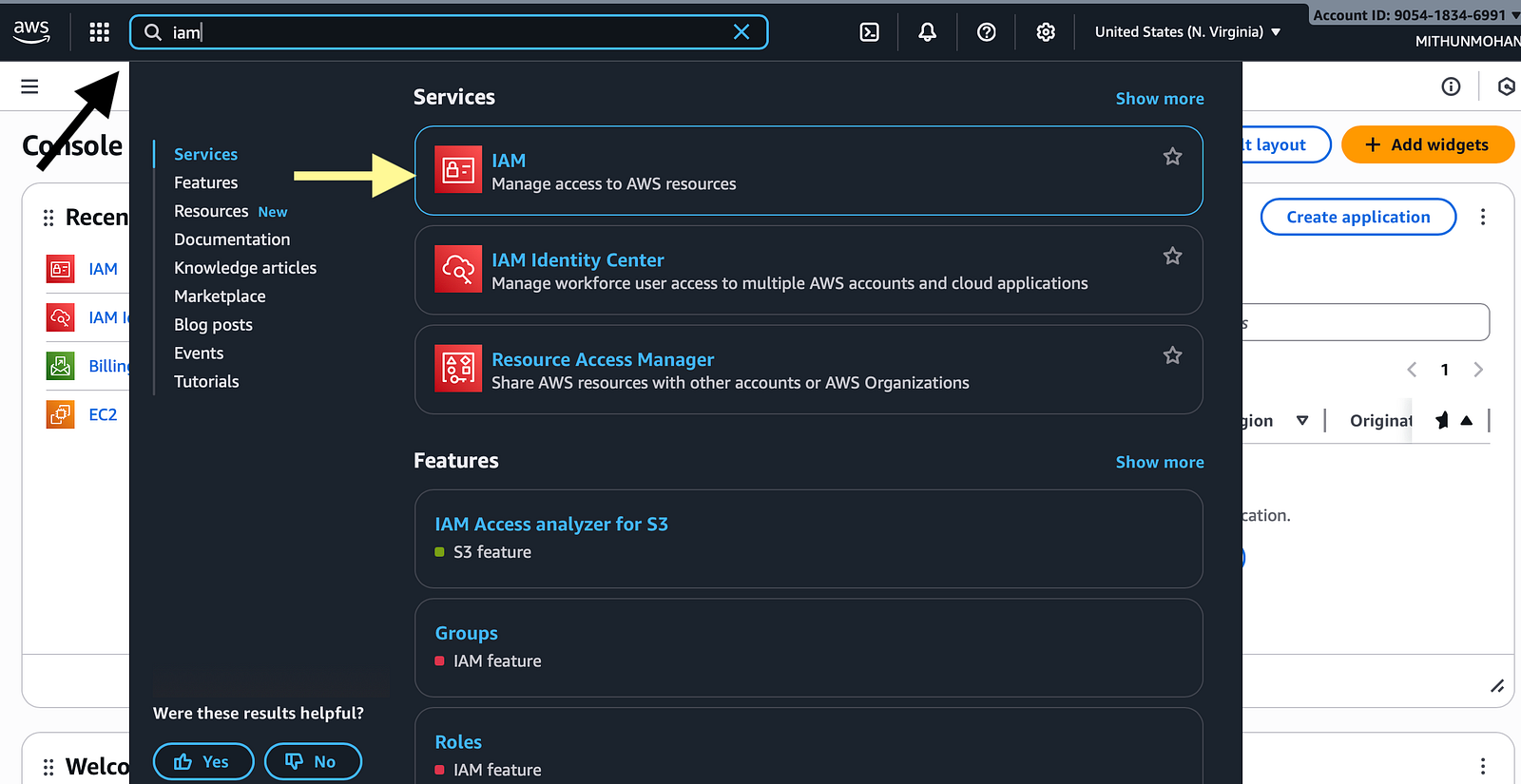
Once you are inside the Management console, search for IAM and go to the IAM (Identity and Access Management) page.
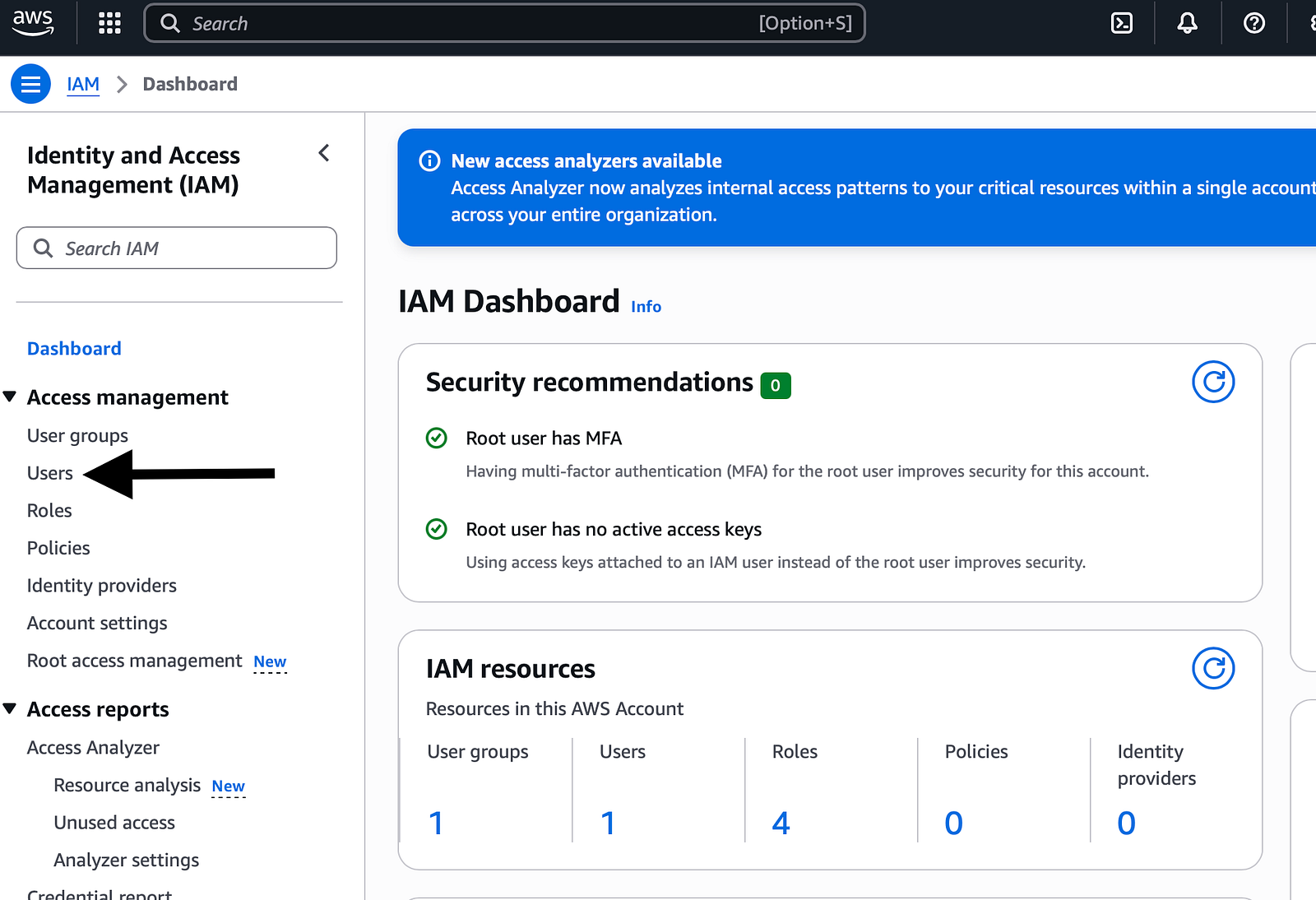
Click on “Users” in the IAM dashboard to see the list of users already created.
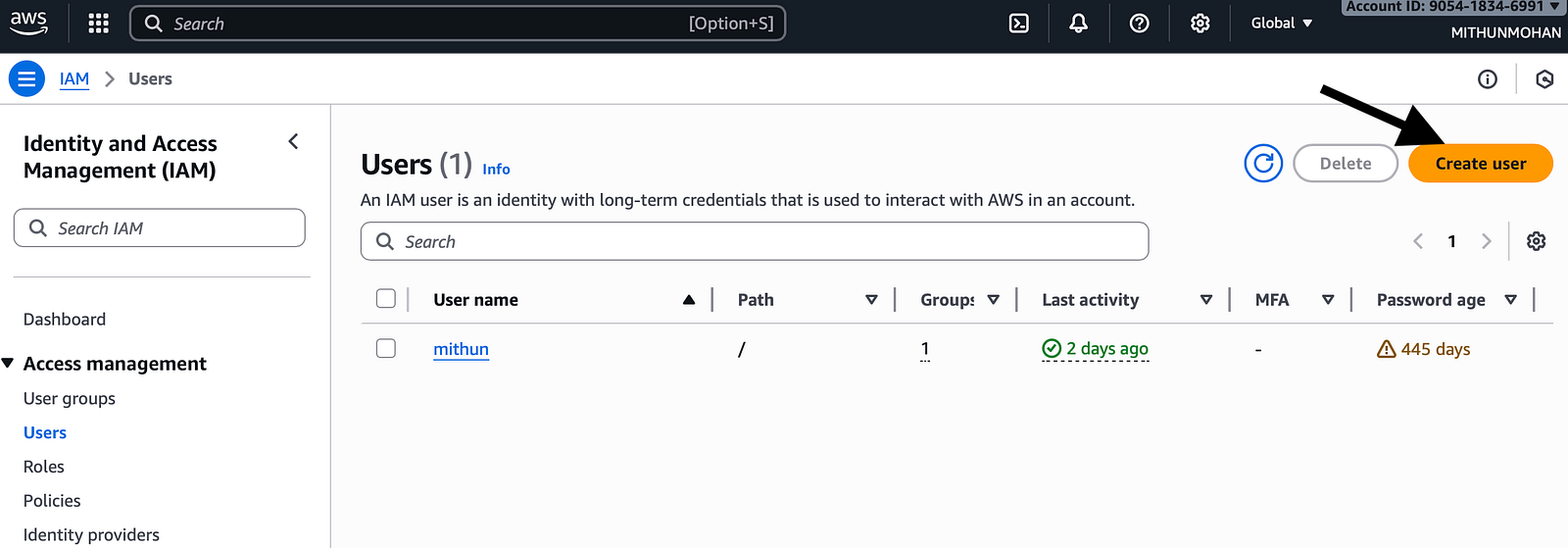
I have already created a user here, but don’t worry, we will create a new user for our activity. Just click on “Create user” and provide a username for our user.
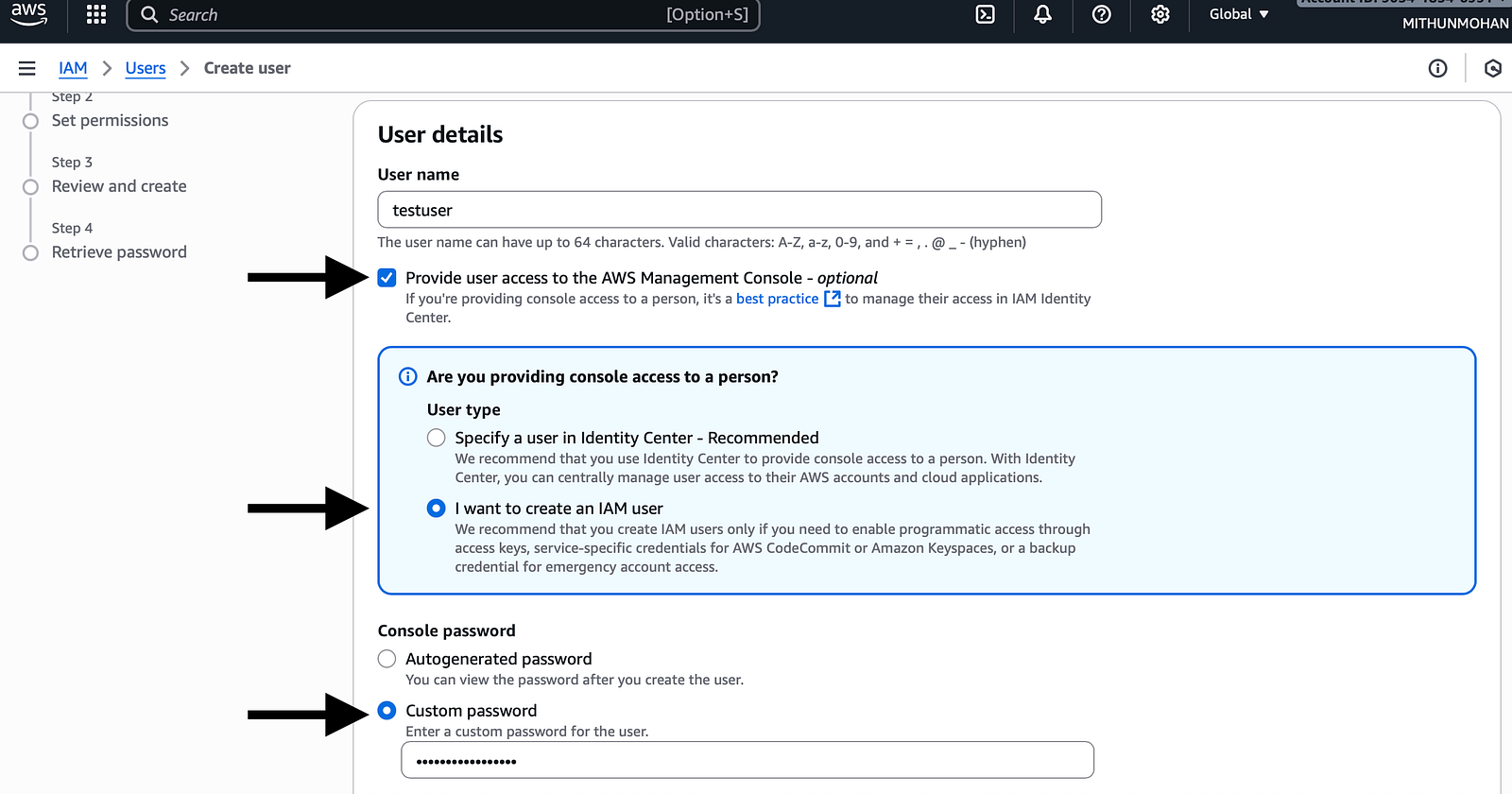
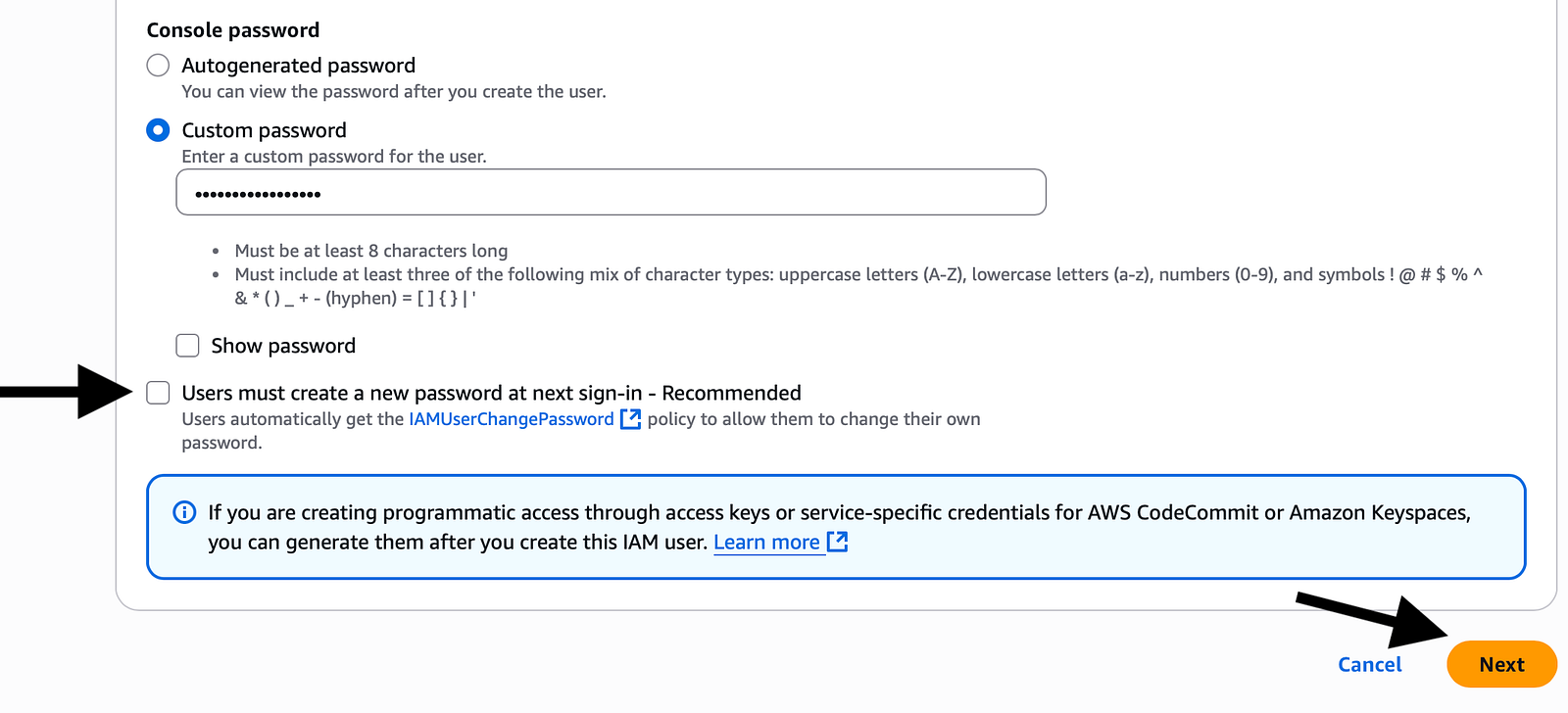
Make sure to check “Provide User Access to management console” and also enable the radio buttons “ I want to create an IAM user” and provide a custom password, then click Next.
If you forget to check/mark “Provide User Access to management console”, then this user will not be able to access the management console. We don’t want that since we are going to use this user to access the console for creating our S3 bucket and other services in our upcoming articles.
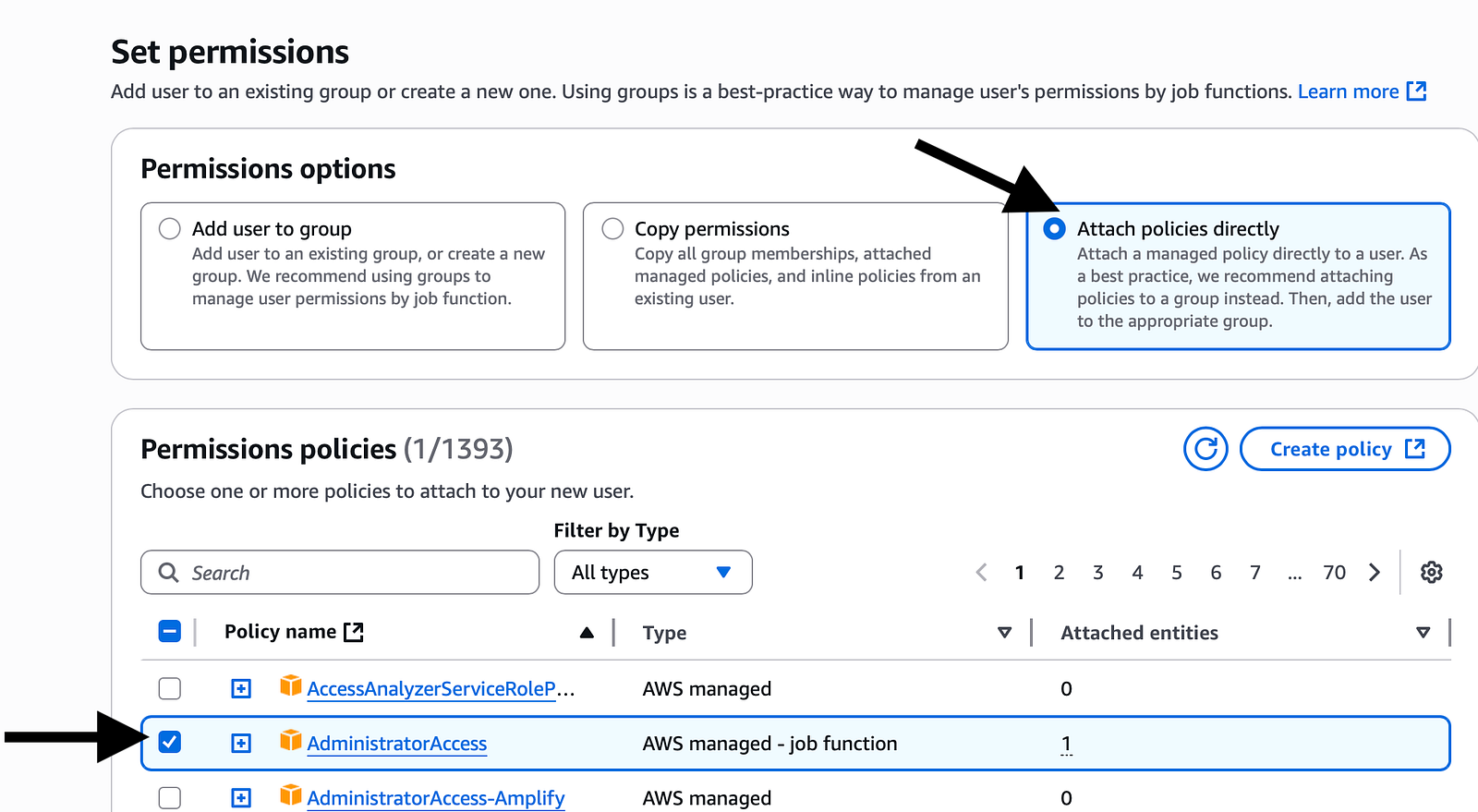
Now, to give permissions for a user in AWS, we will be attaching the respective policies to our user. Here, since this is our lab environment, we will give admin access to our user by attaching the policy “AdministratorAccess”.
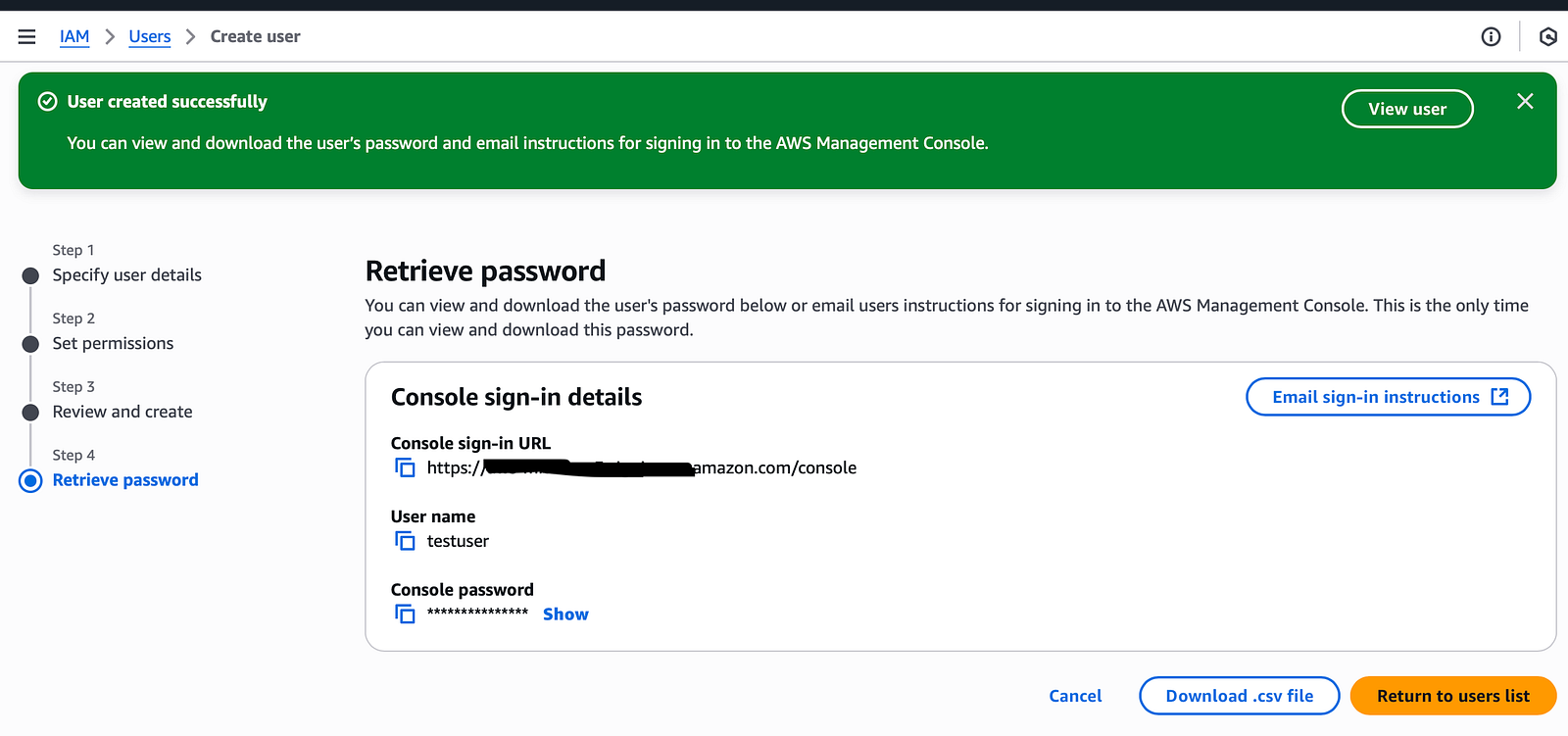
Wola! Our user has now been created.
We have to note the console sign-in URL, username and password as we will need them for sign-in. If you know your account alias, then you can use that as well to sign in.
2) Sign in to the newly created user
Now, as we have created our new user, let's try to log in to our account using this new user.
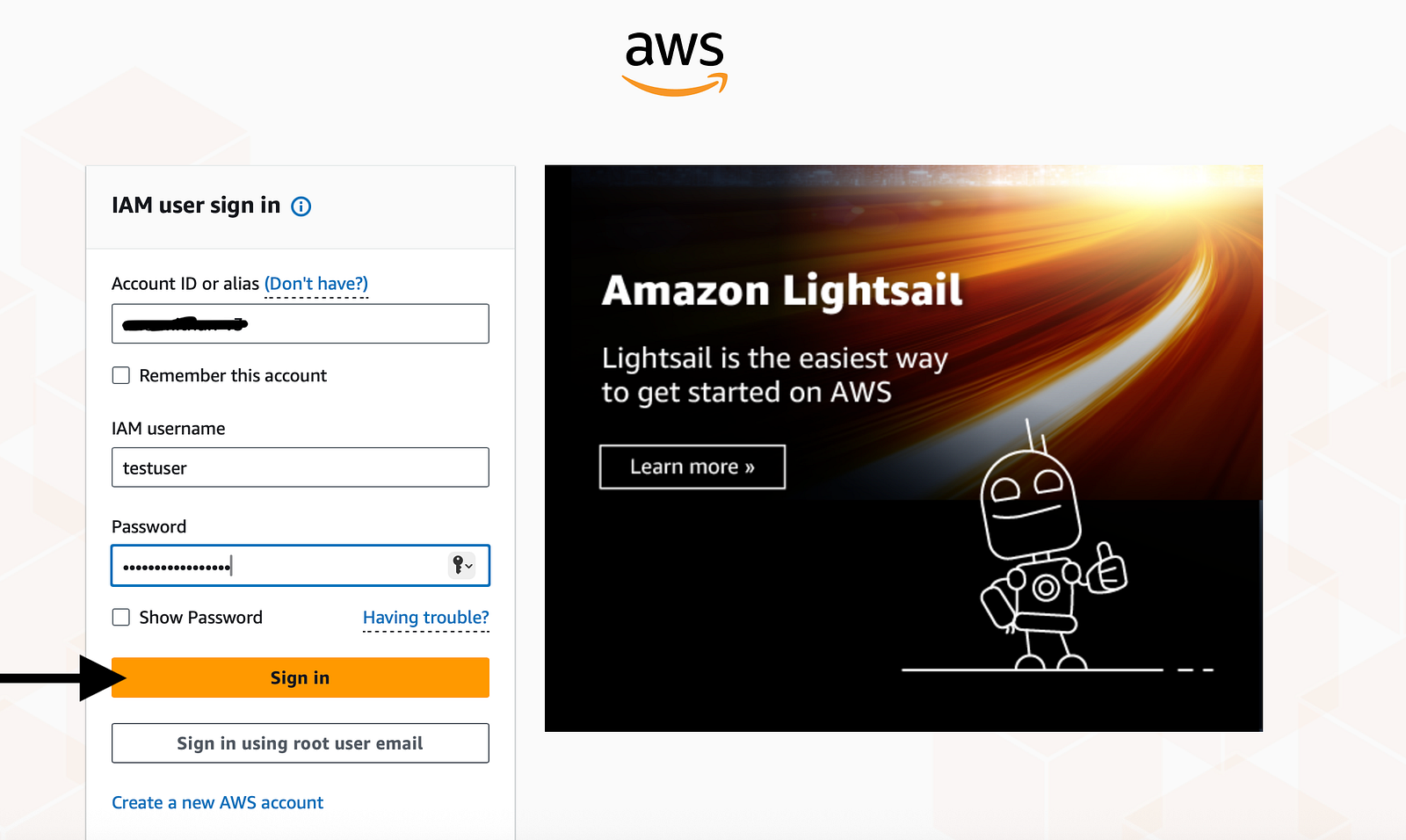
Go to the Console sign-in URL noted down from the previous step, provide your credentials and click “Sign in”.
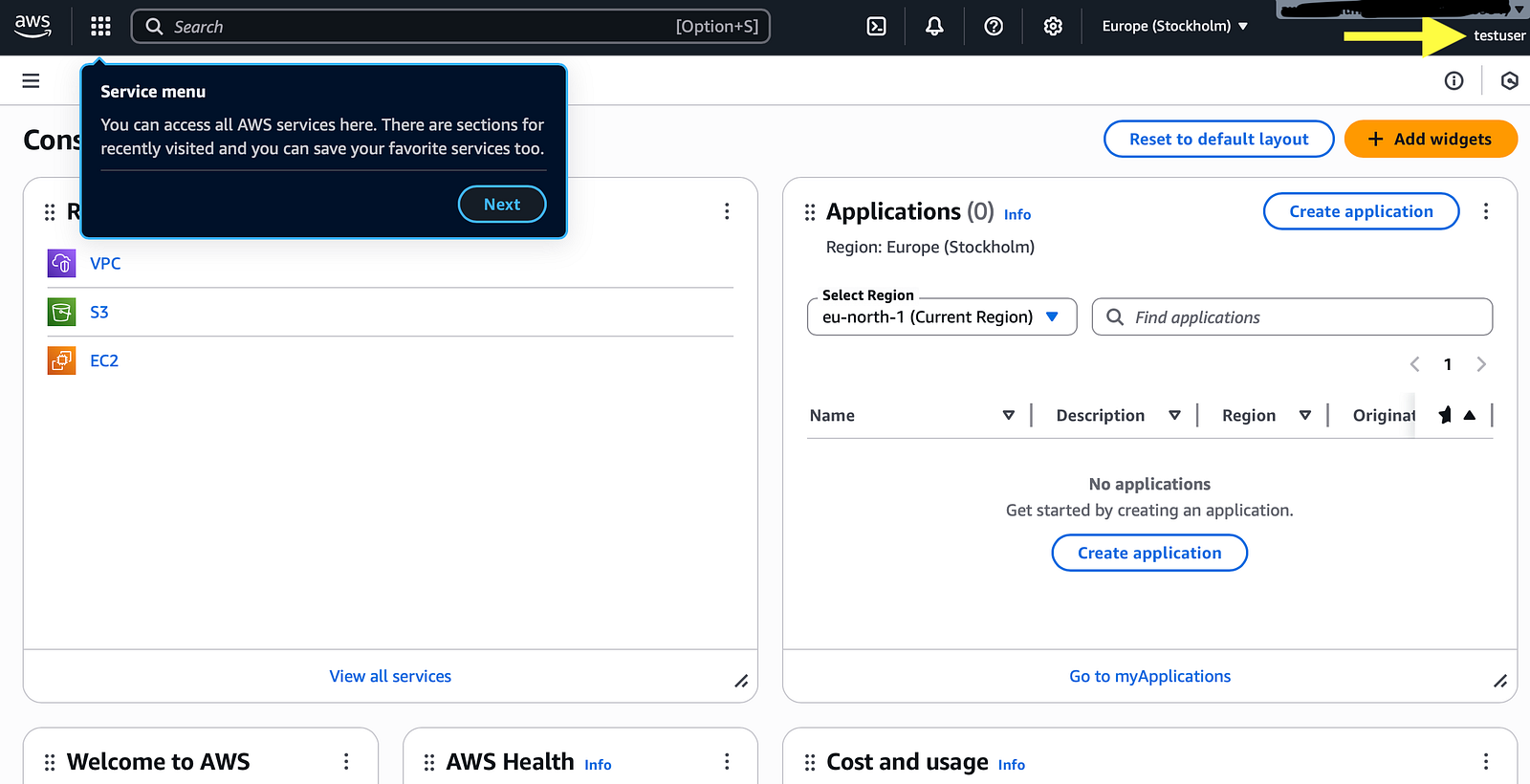
Let us now go through the console to familiarise it!
Conclusion
Creating an AWS IAM user is a fundamental step in securing and managing access to our AWS resources. Configuring users with appropriate permissions will ensure that our AWS account is secure. In our upcoming articles, we will explore how to create an AWS S3 bucket and other key AWS services.
Thanks for reading!
Comments
Post a Comment