 |
| Photo by Growtika on Unsplash |
Here we go after a short break!
This is the continuation of our well-crafted, fun-to-learn AWS Learning Series. In this article, we will create an EC2 instance, actually it's a Virtual Machine, but AWS likes to call it EC2 (Elastic Compute Cloud).
If you are looking to create a Linux/Windows server to get your hands dirty, then AWS EC2 is the quickest way to get one started.
Pre-requisite
- Create an AWS account using your email address.
This link will guide you to set up your first AWS account.
- Create an AWS IAM user. (optional)
If you haven’t created a separate user, then this article will guide you to create your first AWS IAM user. Creating your resources in your root account is not recommended, and hence, we are creating and using a separate IAM user for your exercises.
Now, with the above steps completed, we are all set to start creating our EC2 instance.
Let’s Start!
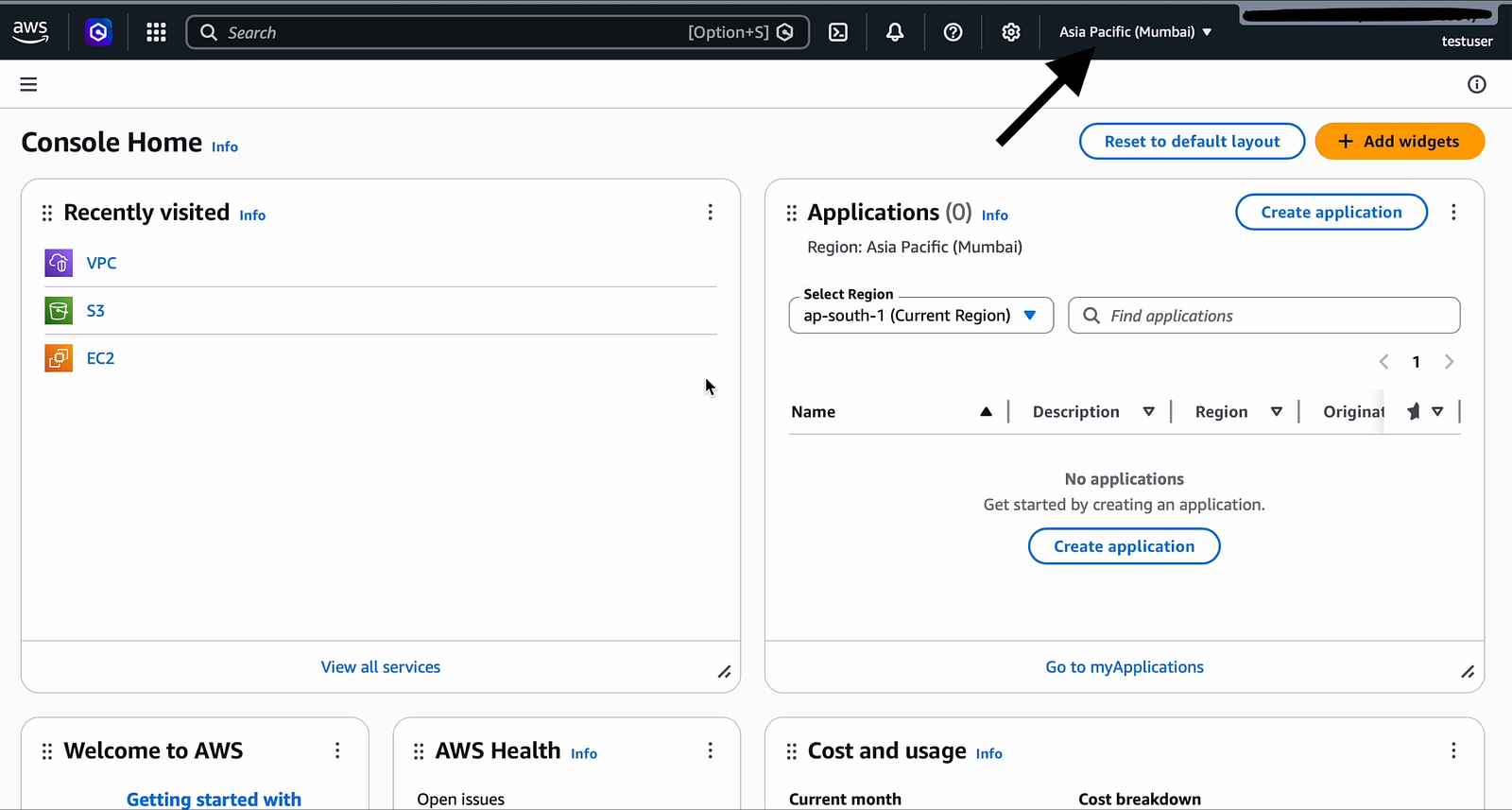
- Sign in to your AWS Management Console
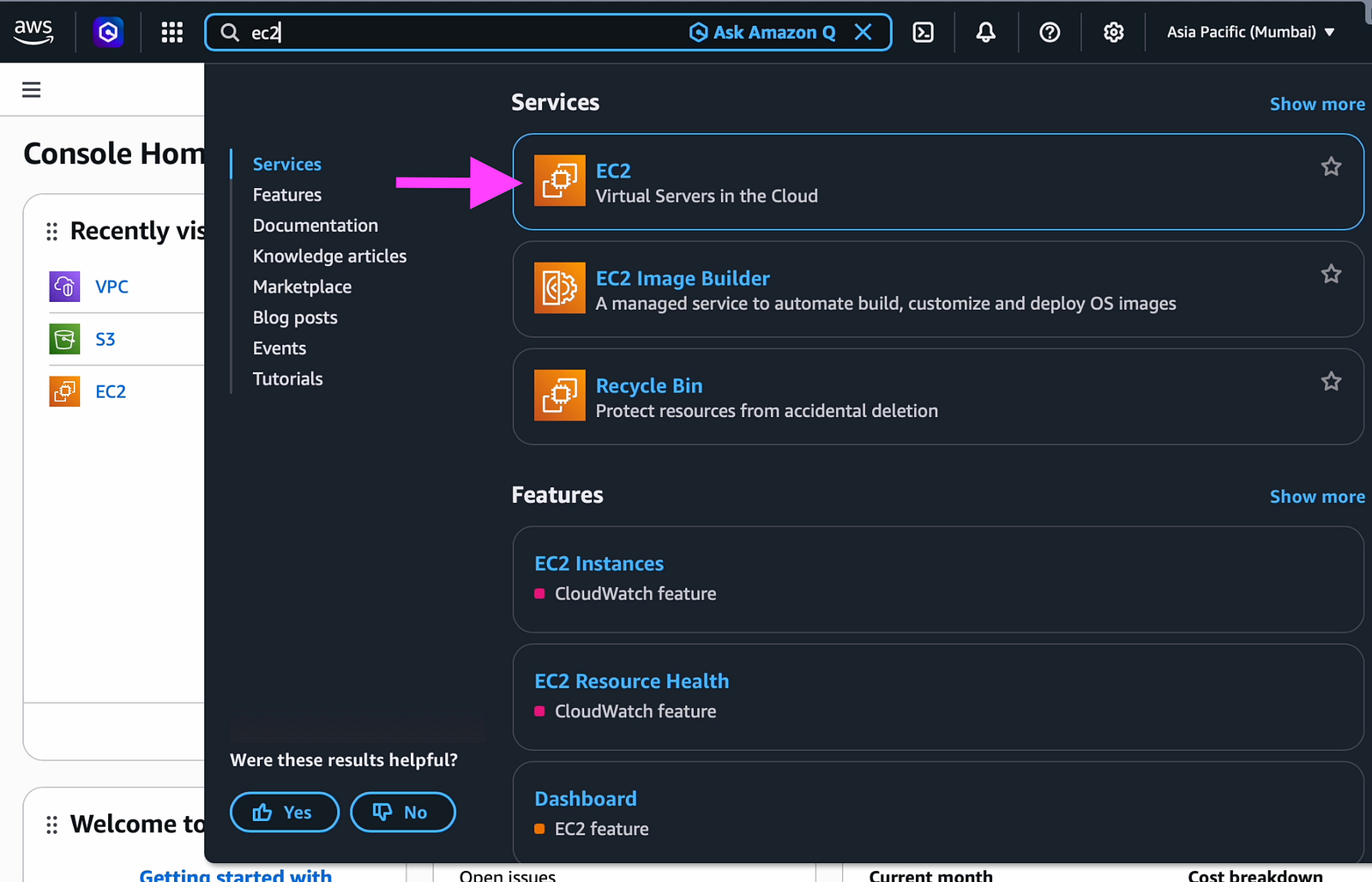
2. Go to EC2 Dashboard and Launch instance
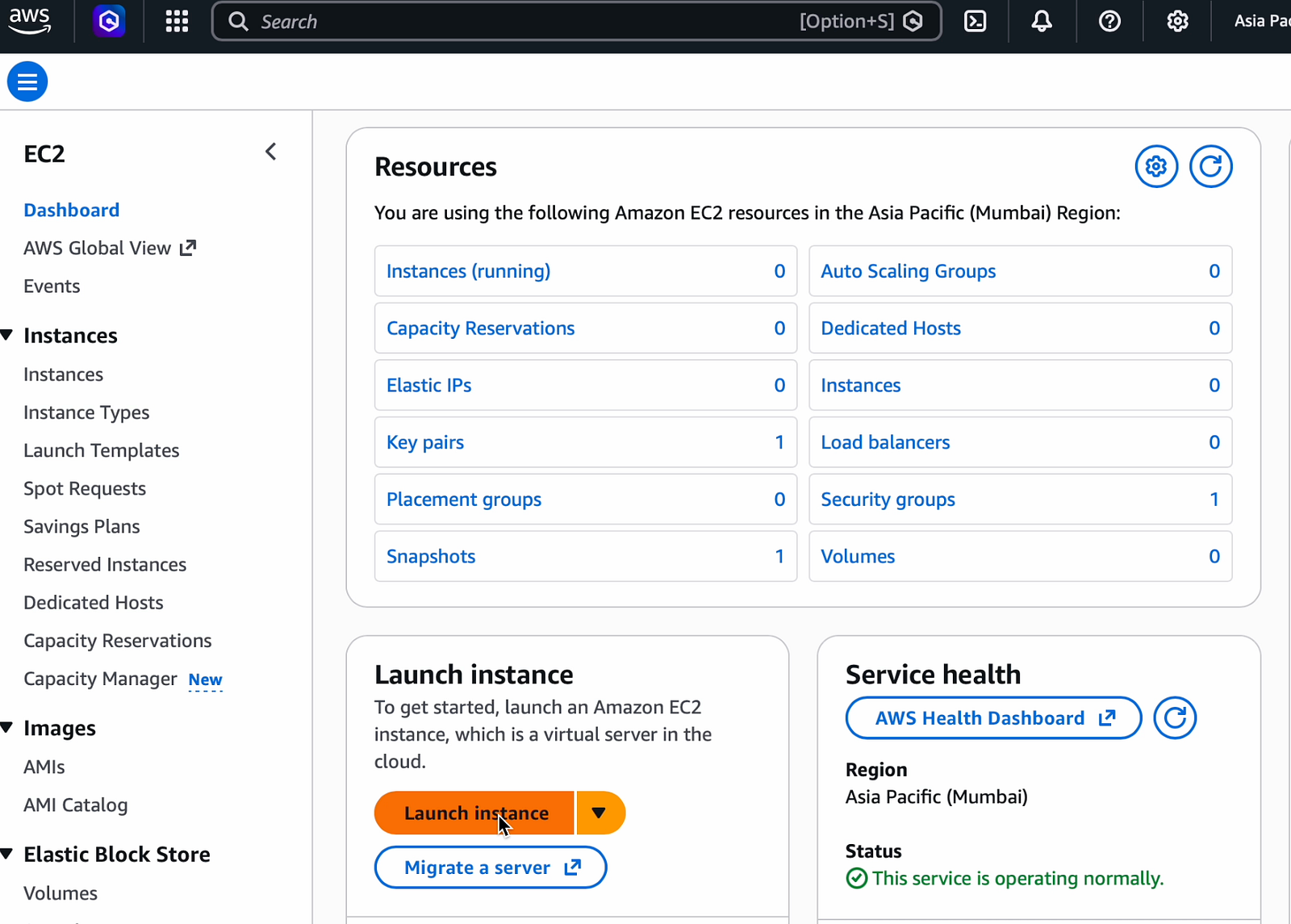
3. Enter your EC2 instance details like name, shape, os etc
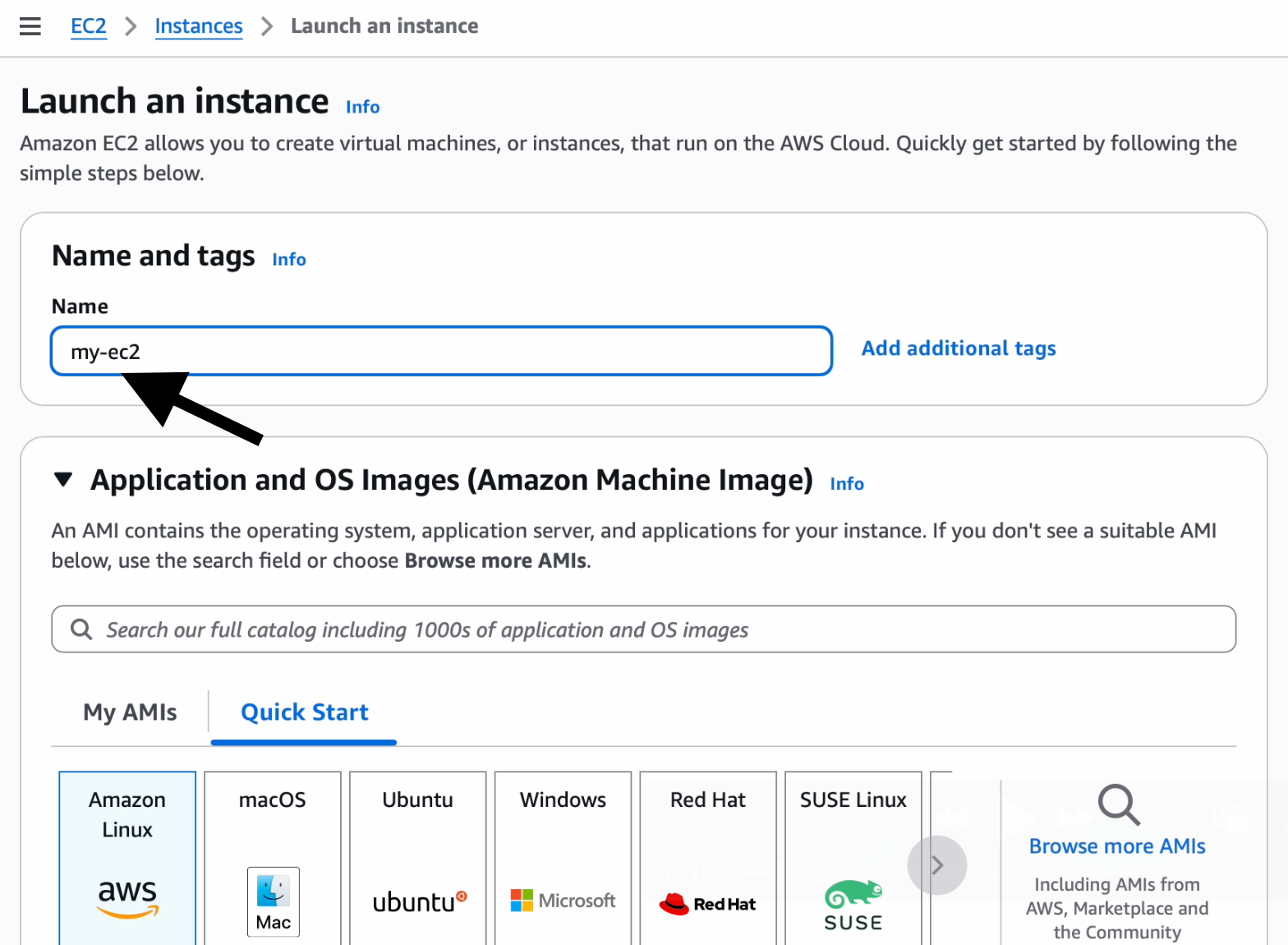
You can name your EC2 instance under the Name and Tag field.
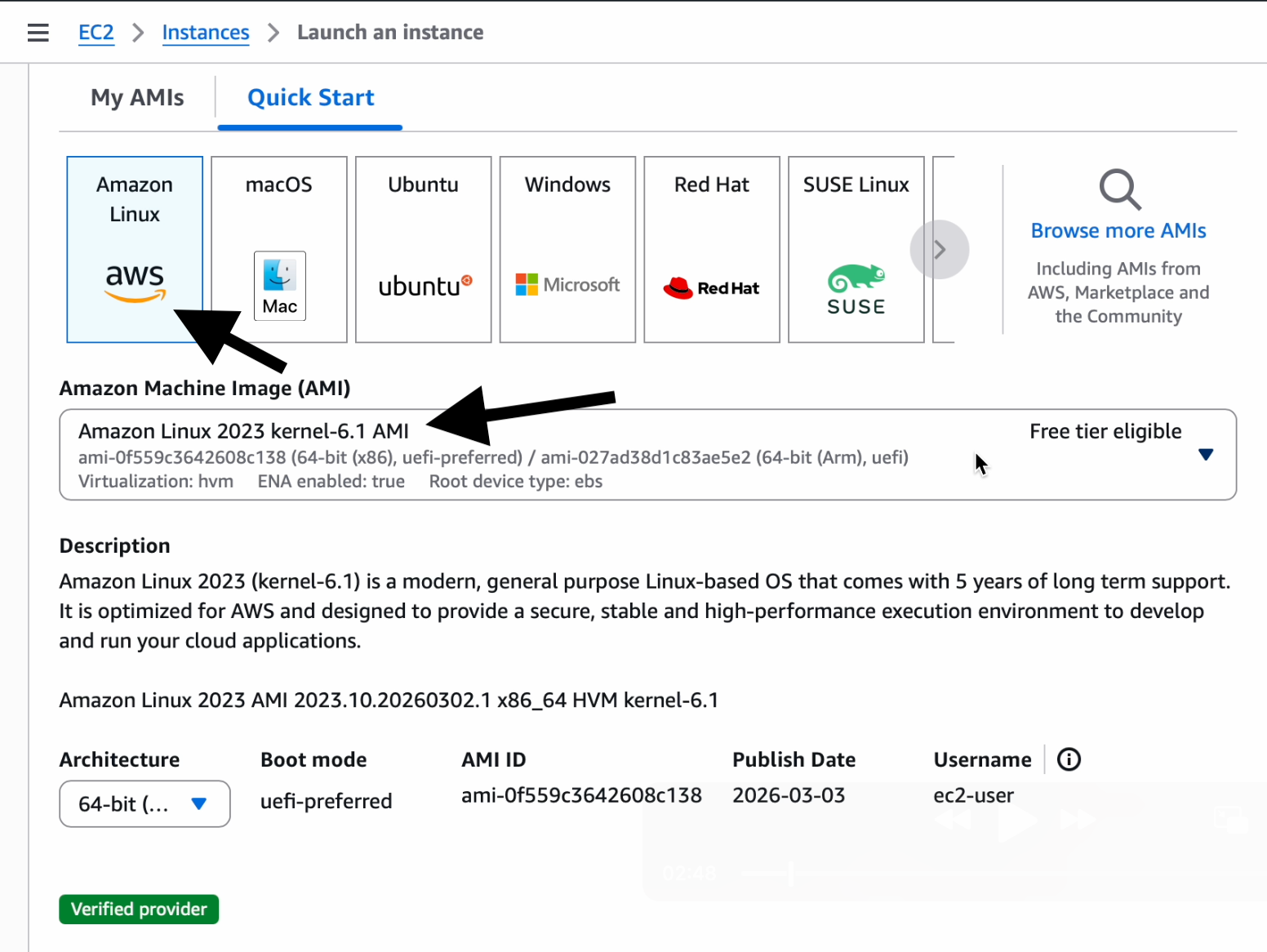
Here I am selecting “Amazon Linux” for our instance since it is eligible for the Free tier. Make sure to use free-tier flavours to ensure that you are not getting charged.
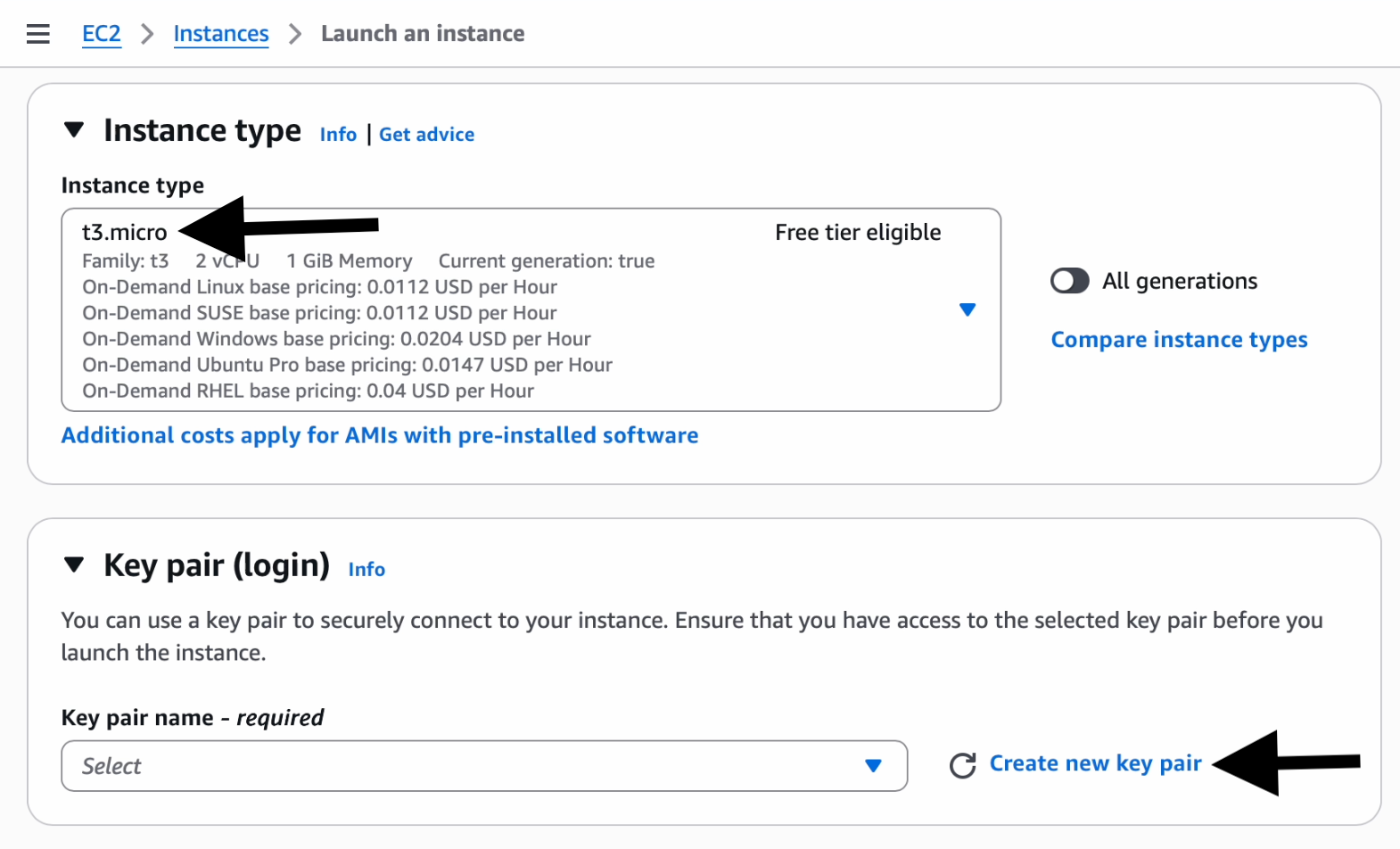
4. Select your instance type and create a key pair for SSH
Here I am selecting the instance type as t3.micro since it is Free Tier eligible.
When you start building for production purpose make sure to use whichever flavour and size is appropriate for your environment.
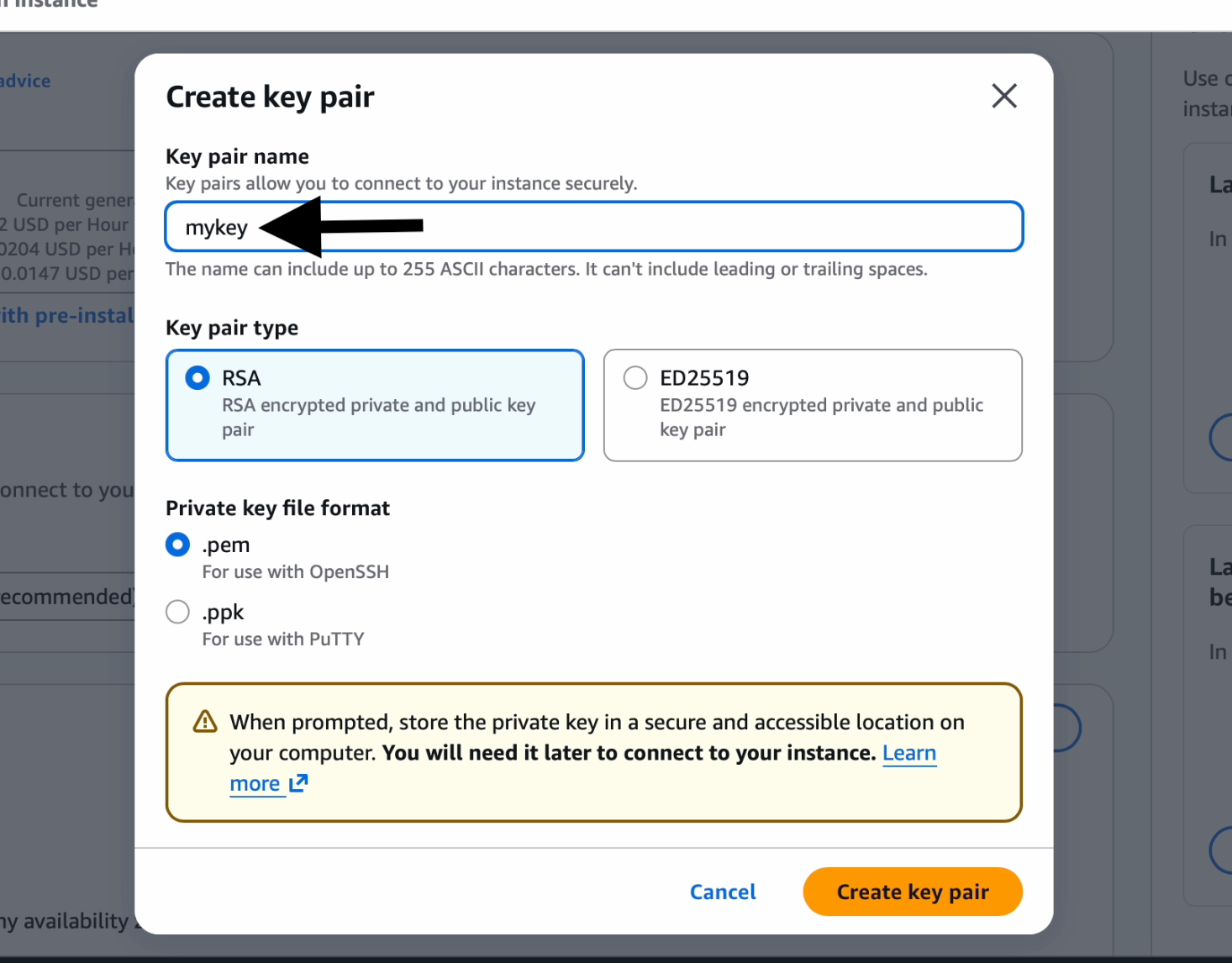
Wondering what the use of a key pair is!
It’s just used to connect to our instance from our client machine in a secure way; in our case, it will be to connect to EC2 from our laptop.
Here I am downloading the .pem key, since I will be trying to connect from my Mac. You can use .pem for Mac/Linux and .ppk for connecting from Windows using PuTTY.
Note: Even if you have downloaded pem you can use PuTTYgen to convert it to PPK. You can use this linkto know how to convert PEM to ppk and to connect to your EC2 using PuTTY. It's pretty straightforward.
5. Allow SSH traffic to our EC2
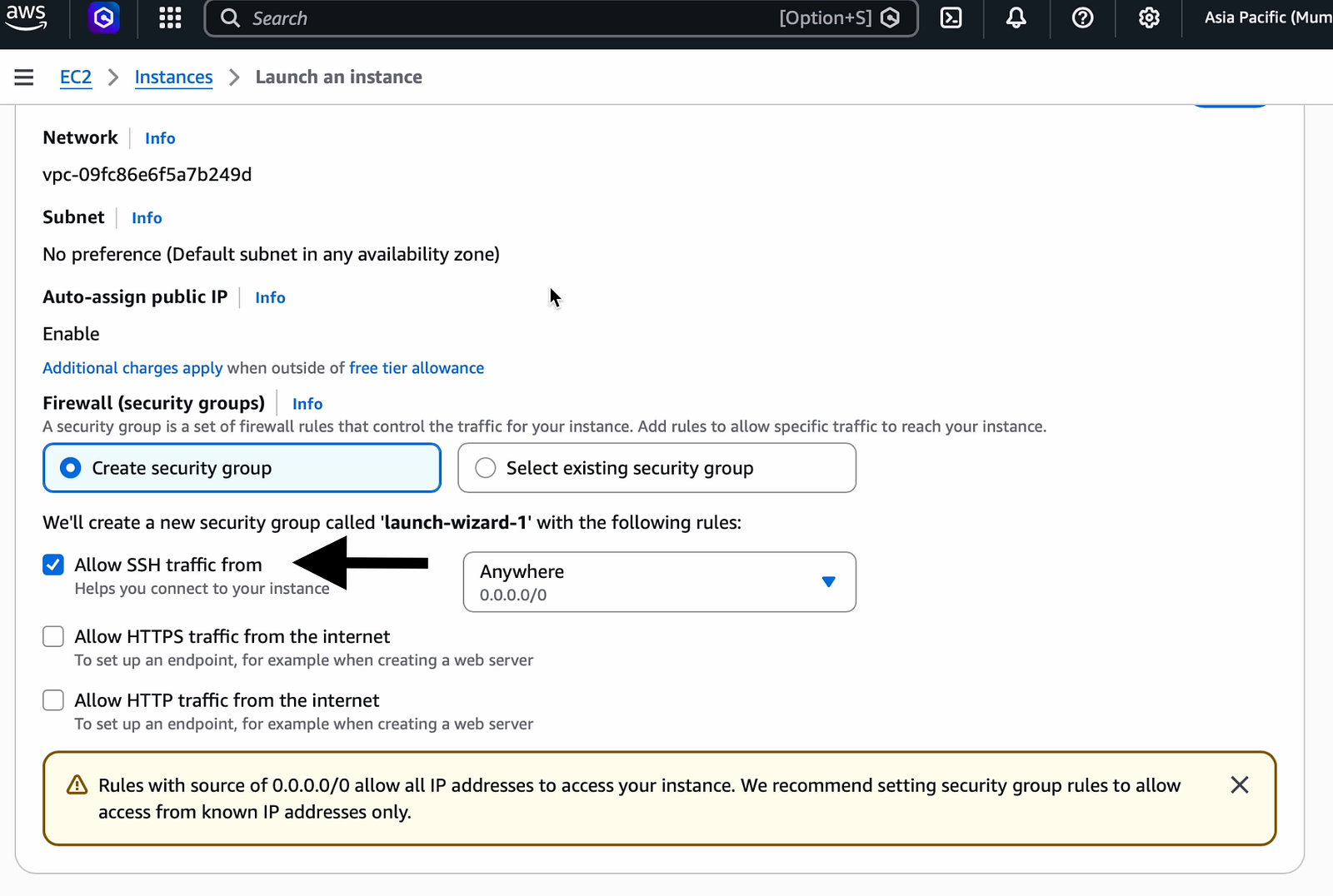
You have to enable the radio button “Allow SSH traffic from”.
Note: Here I have given Anywhere (0.0.0.0/0) since this is our learning purpose, but it is recommended to give the correct IP range from where you will be connecting in case of a production environment.
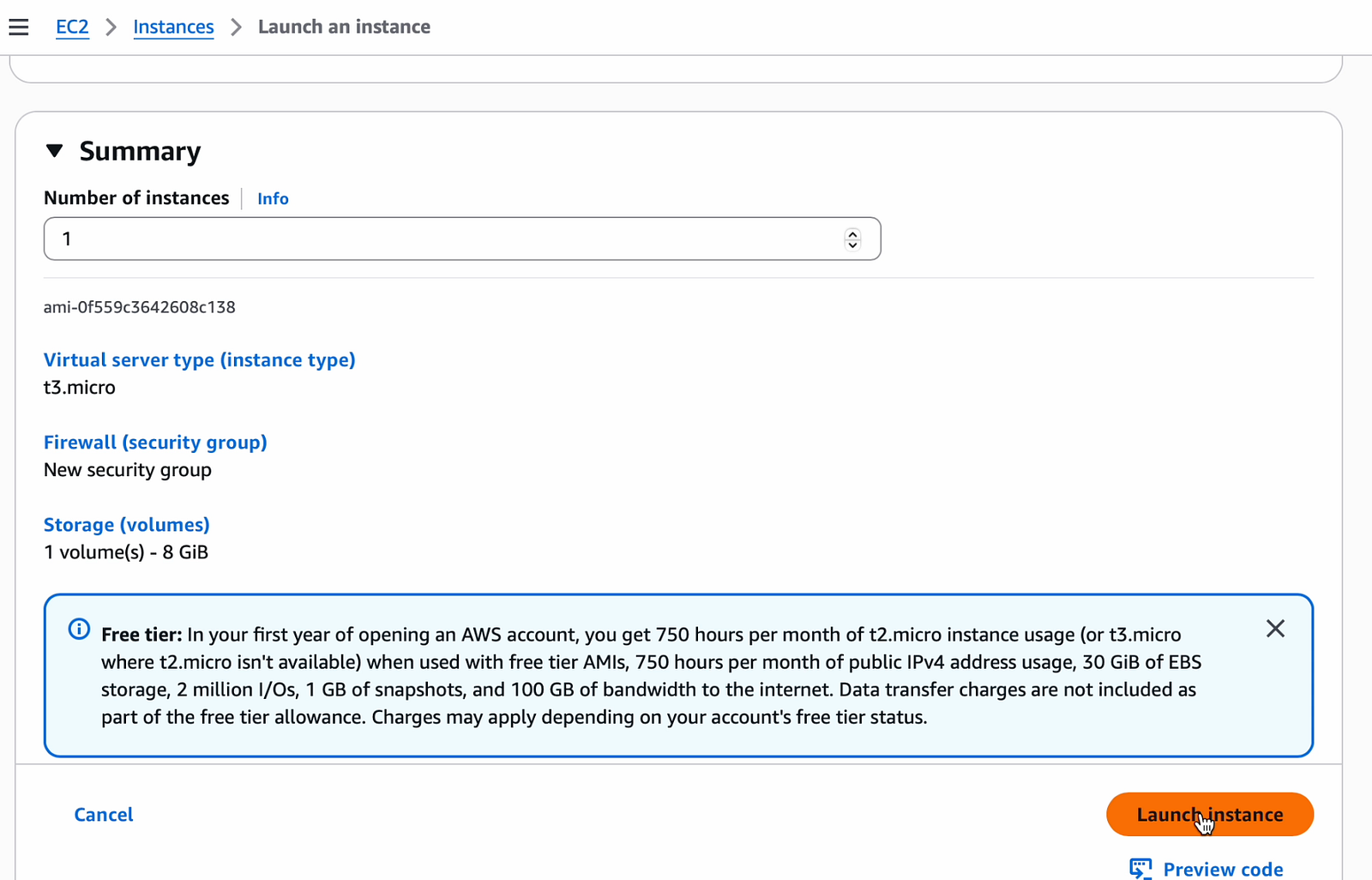
6. Check the summary page once more and launch your instance
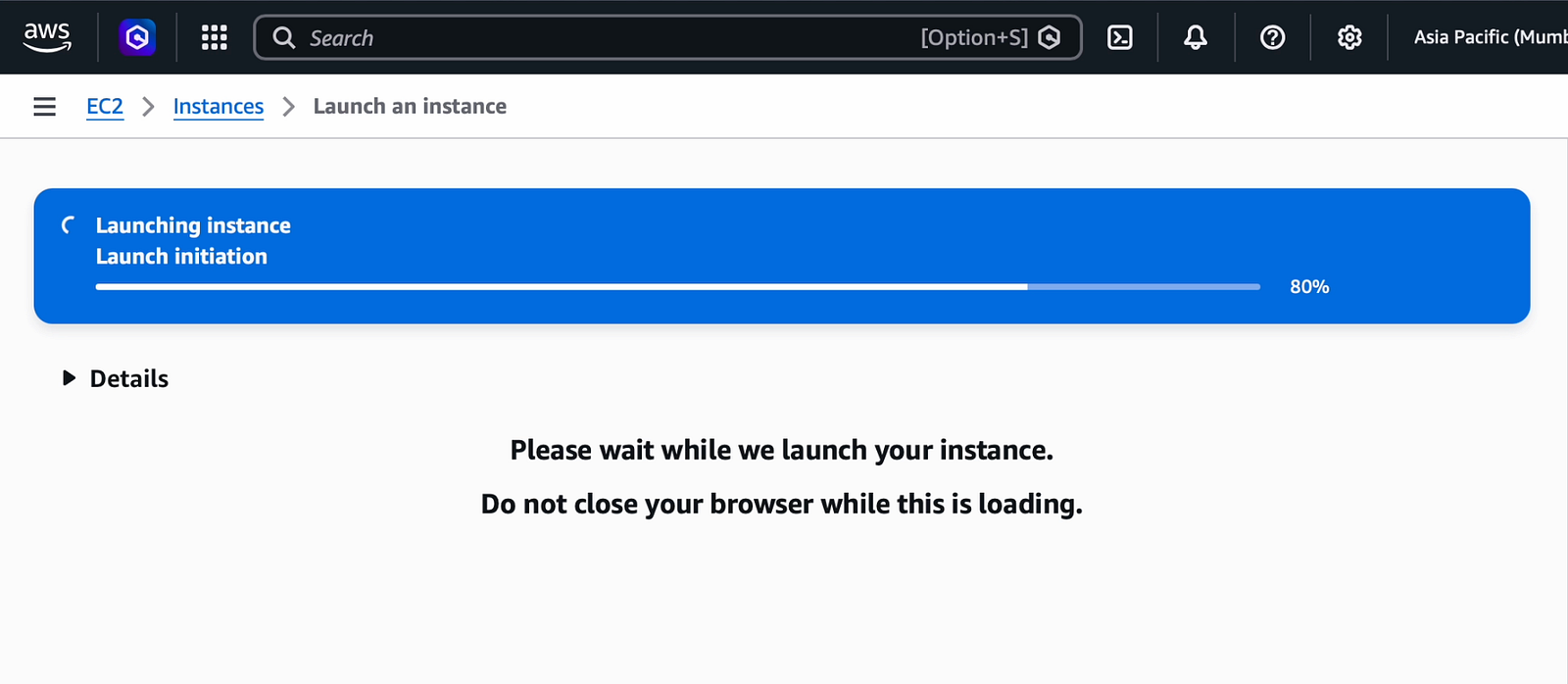
Verify your summary page to confirm you have given the options correctly and click “Launch instance”, post which it's just a matter of seconds to cook your new EC2.
If you need more than 1 instance, then you can give the number of instances needed as desired in the “Number of instances” section below.
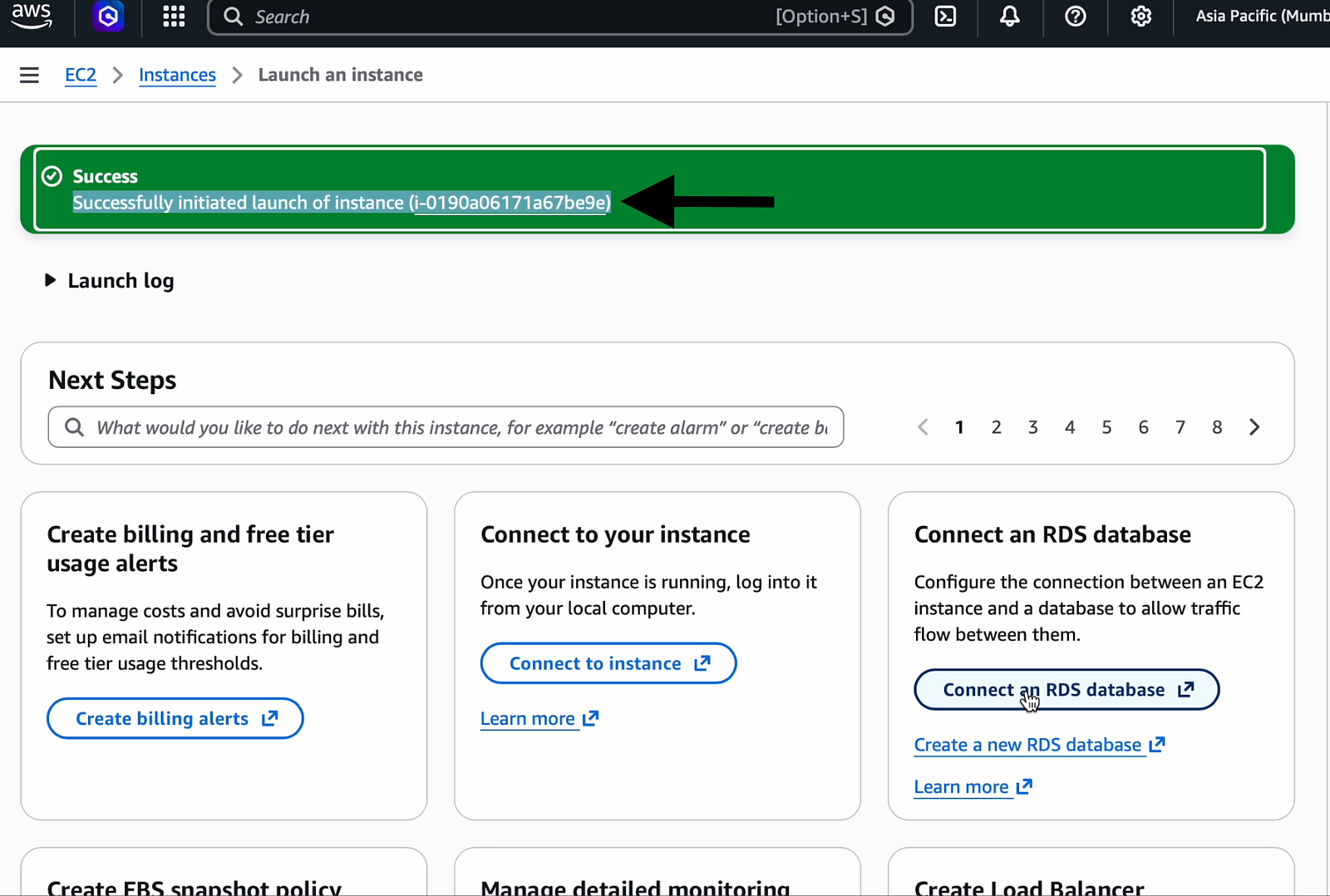
Note down the instance ID shown in the success message.
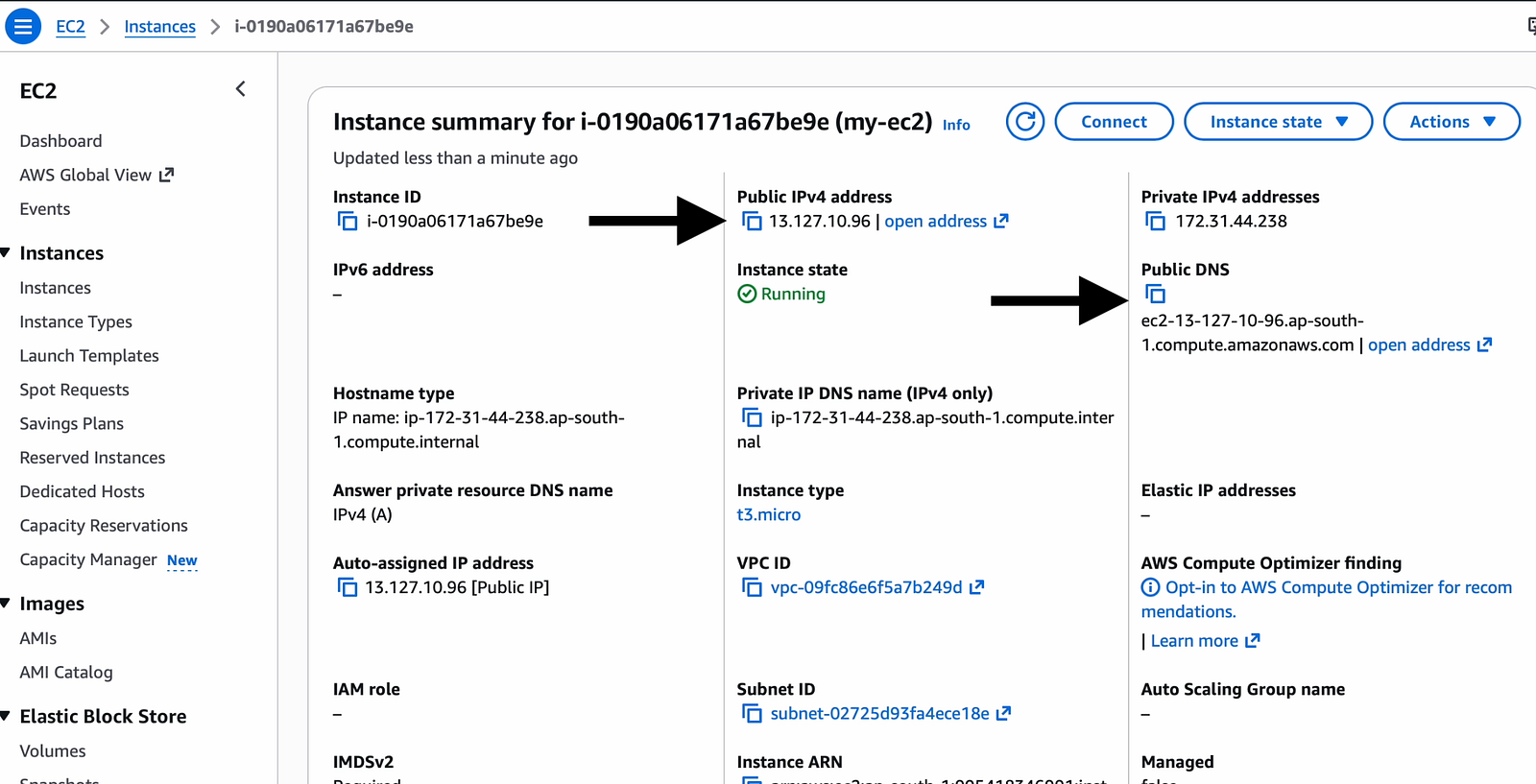
If you click on the instance id it goes to the page below, from where you can get the public IP and Public DNS name of our EC2 instance. We will be using it to connect to our EC2 instance shortly.
7. Get the details from the EC2 Dashboard
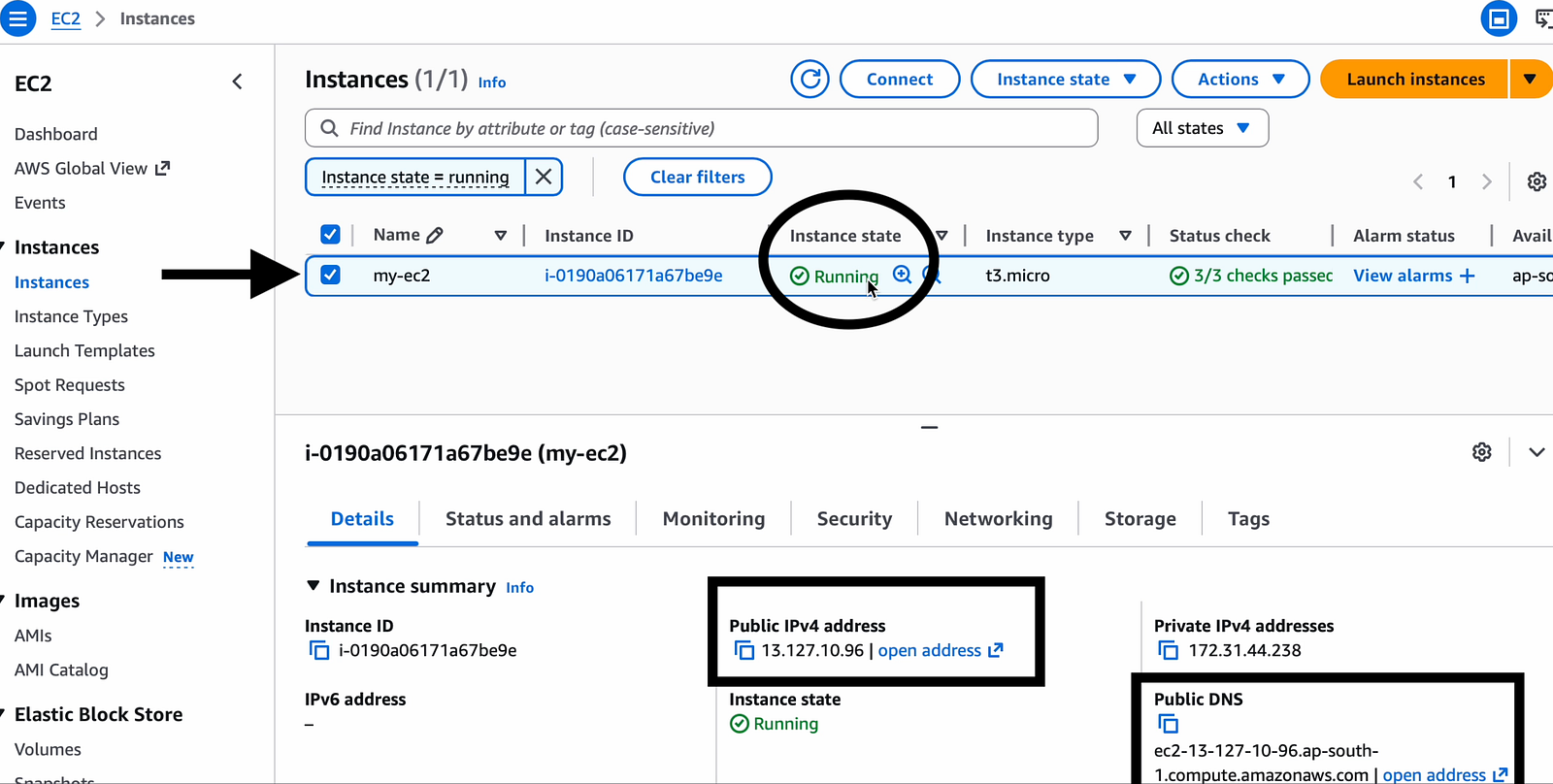
Don't worry, even if you have missed clicking the instance id to get to the details page, you can still go to the EC2 Dashboard and see your instance running and its details as below.
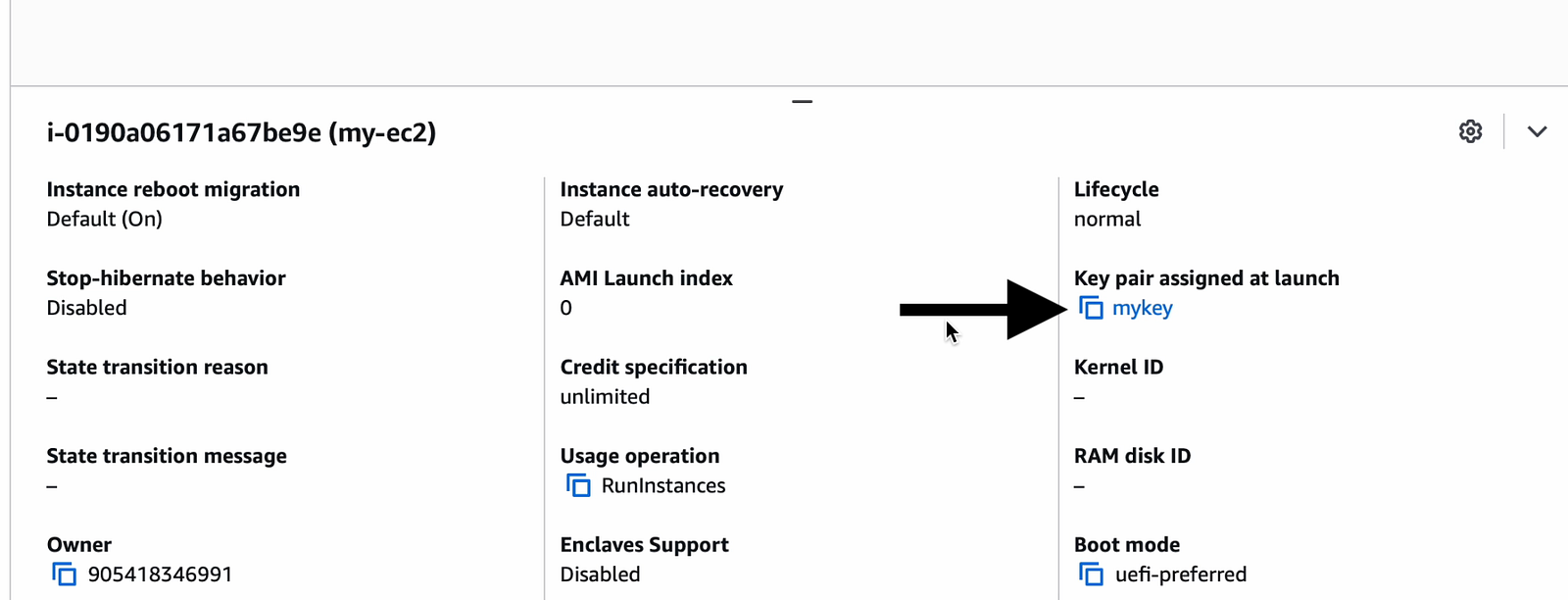
You can also see the key we created during the creation of the EC2 in the same details tab. We will be using this key, which was downloaded to our client's laptop, to connect to the EC2 instance.
8. Get the connection details from the “Connect” page.
If you click connect, you will get the information needed for connecting to your EC2 instance from here as well.
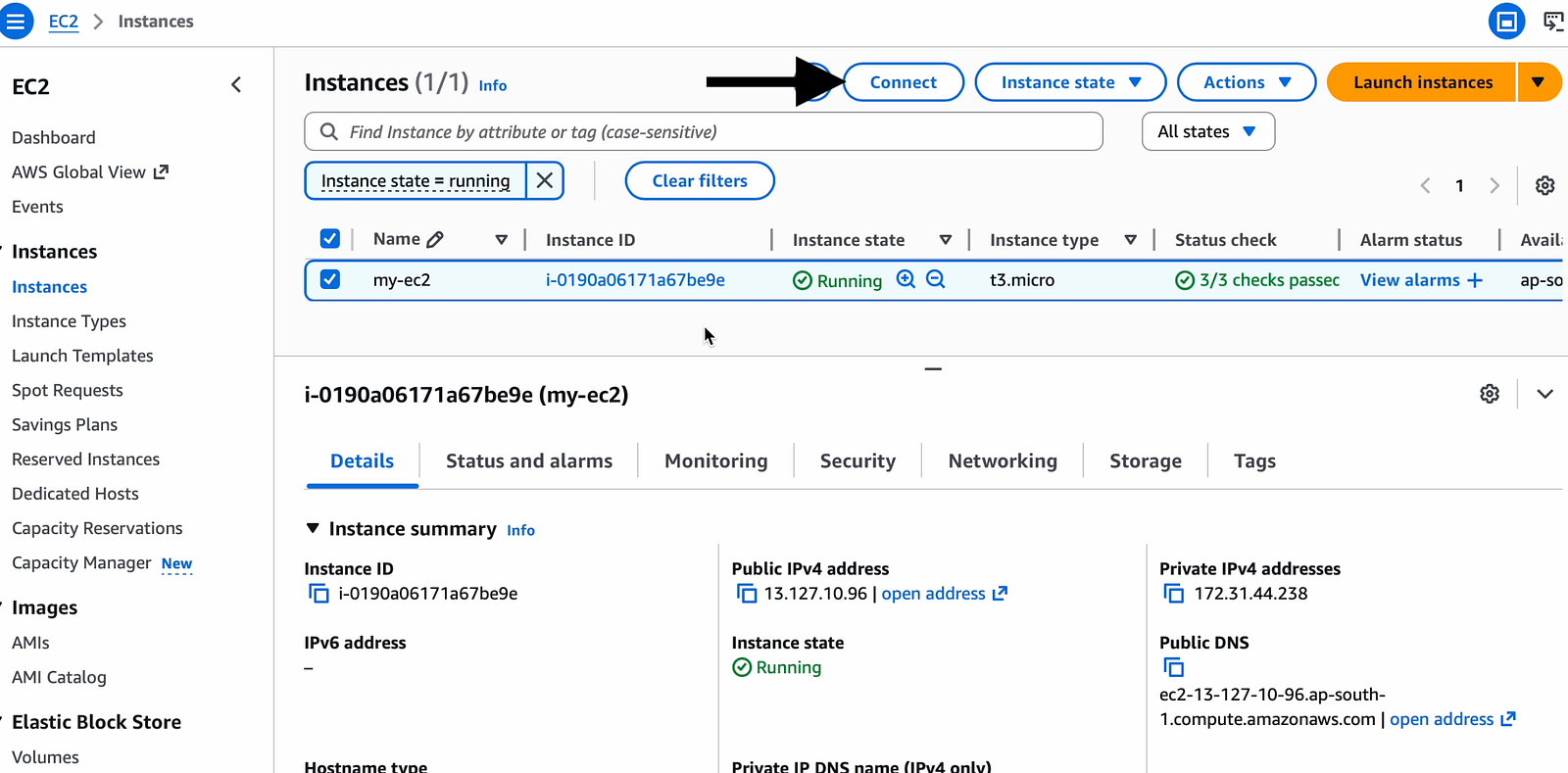
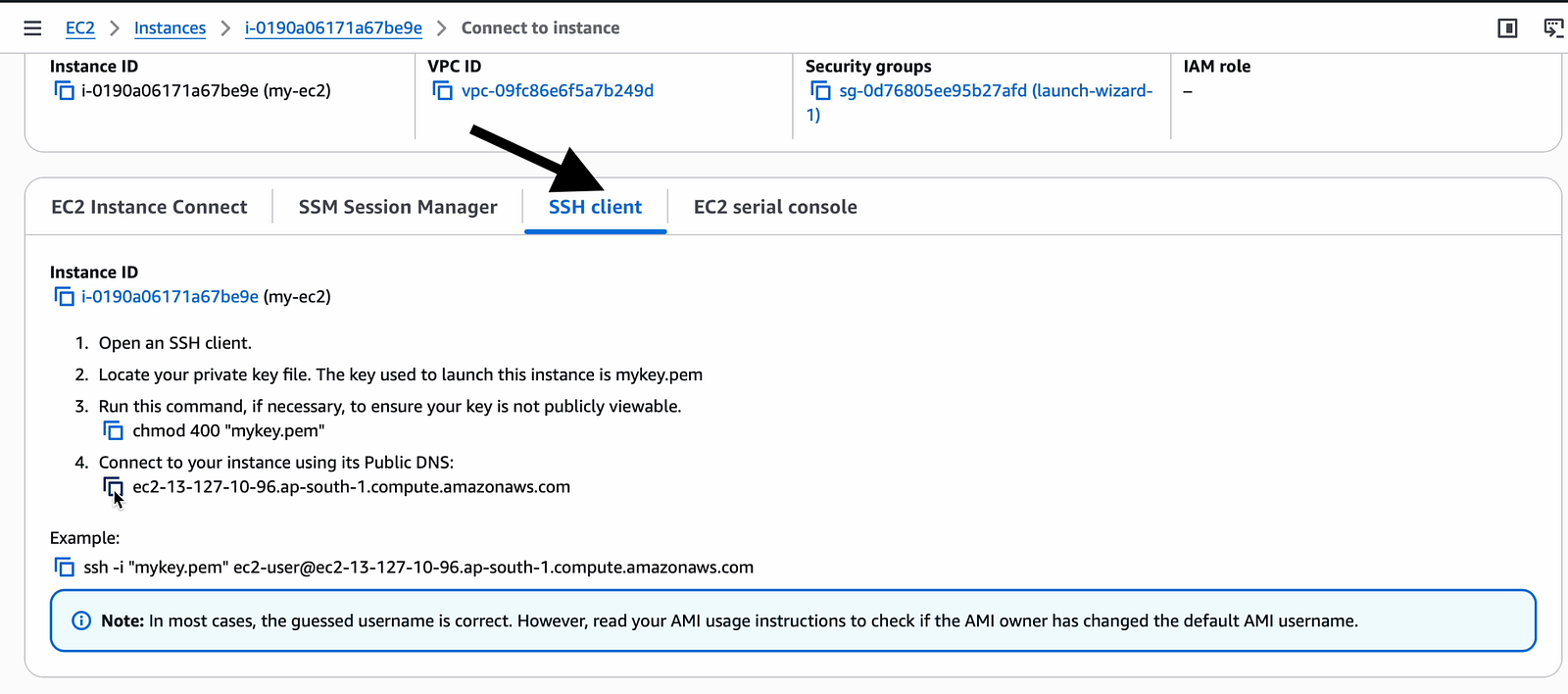
Here you can see that the username with which we have to connect will be ec2-user.
Please note that if you forgot to give the correct permission mentioned in the above screenshot to the pem file, then you will get a permission denied issue while connecting to the EC2 instance.
Don't worry, just run the below to fix the permission.
chmod 400 "mykey.pem"9. Connect to your EC2 instance
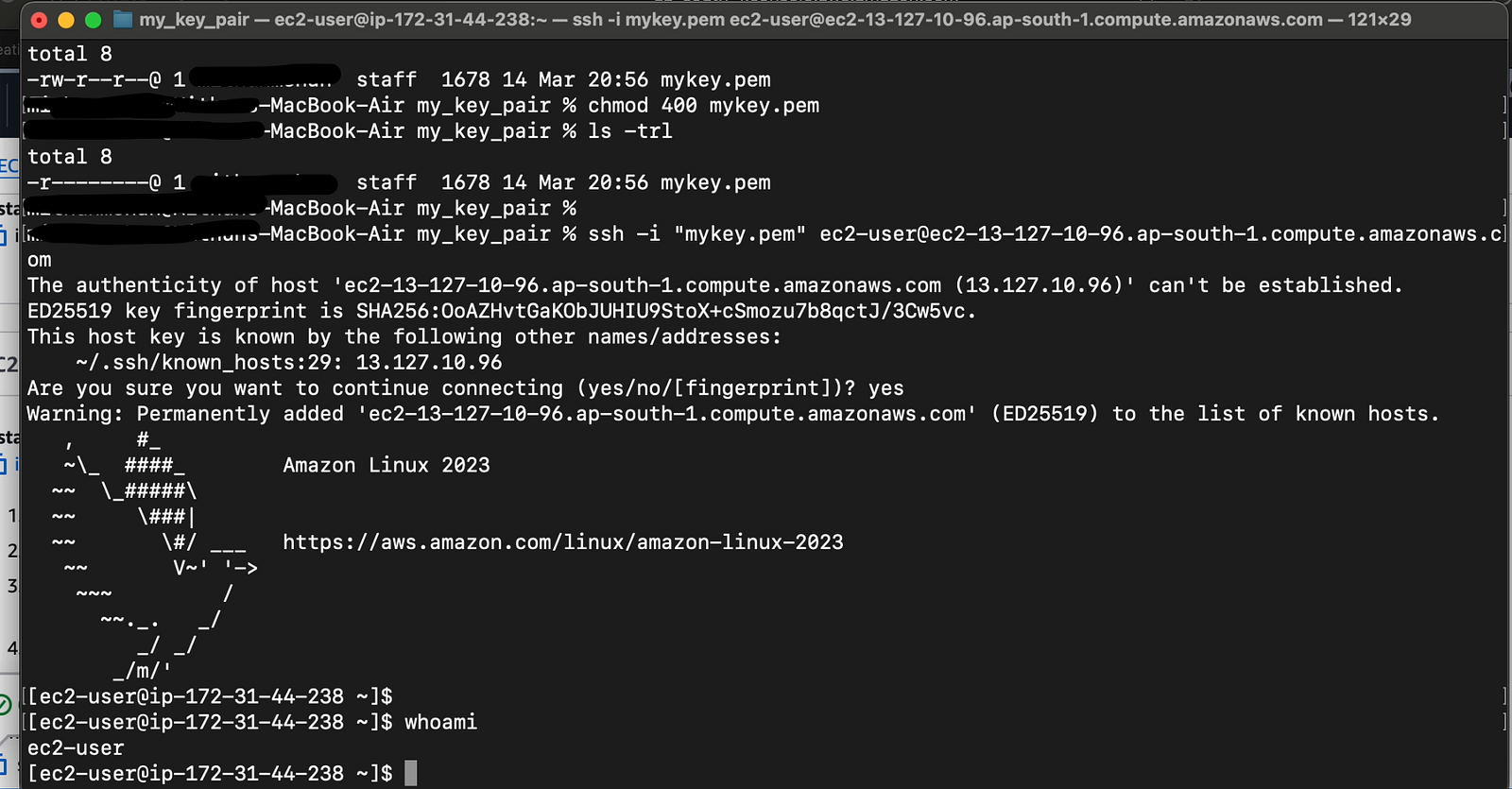
Since I am using my Mac to connect remotely to the EC2, I had to open the terminal and give the below command. You can use the same for any flavours of Linux as well.
ssh -i "mykey.pem" ec2-user@ec2-13-127-10-96.ap-south-1.compute.amazonaws.comNote: Make sure to change the DNS name or public IP of your EC2 in the above command. Also, keep in mind to be in the folder where your pem file is located or give the full path of your pem file in the above command.
Don't worry windows guys, you can use Putty to access the EC2 instance from your Windows laptop. This link will guide you on using PuTTY to connect to your EC2 instance.
10. Deleting the evidence
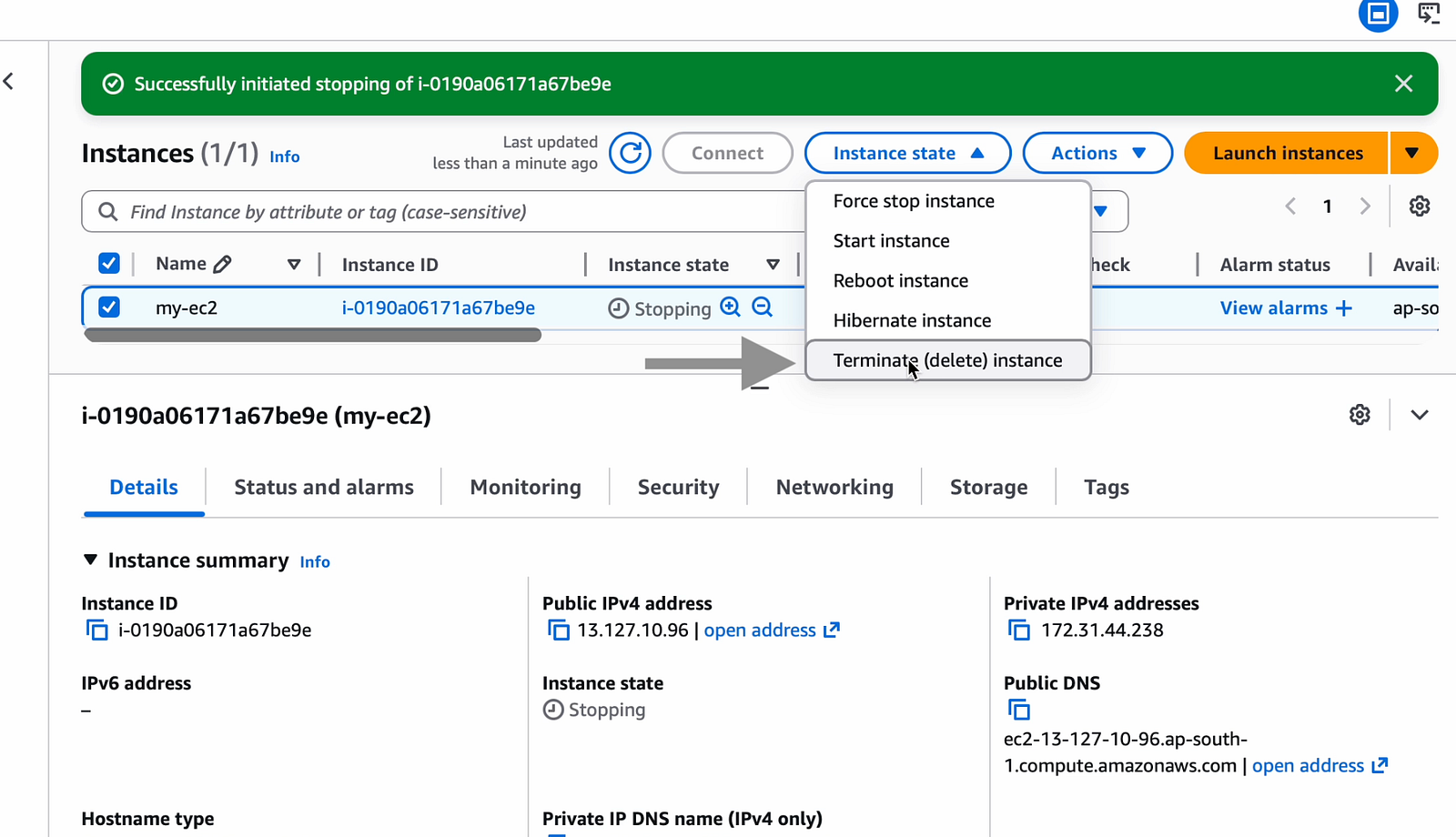
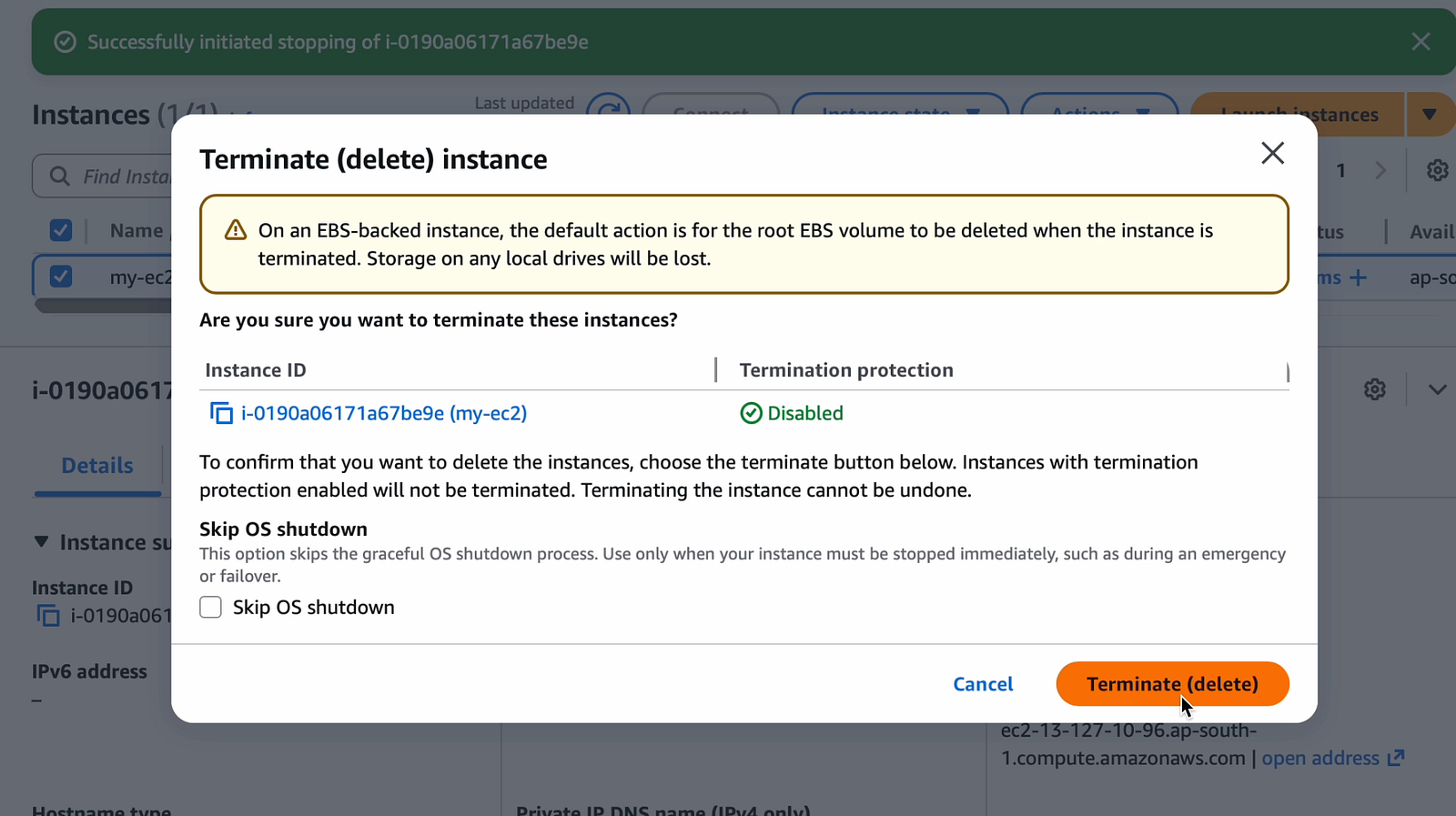
We can now delete the instance we have just created for our learning purpose just to ensure that we are not getting charged for any resources from AWS.
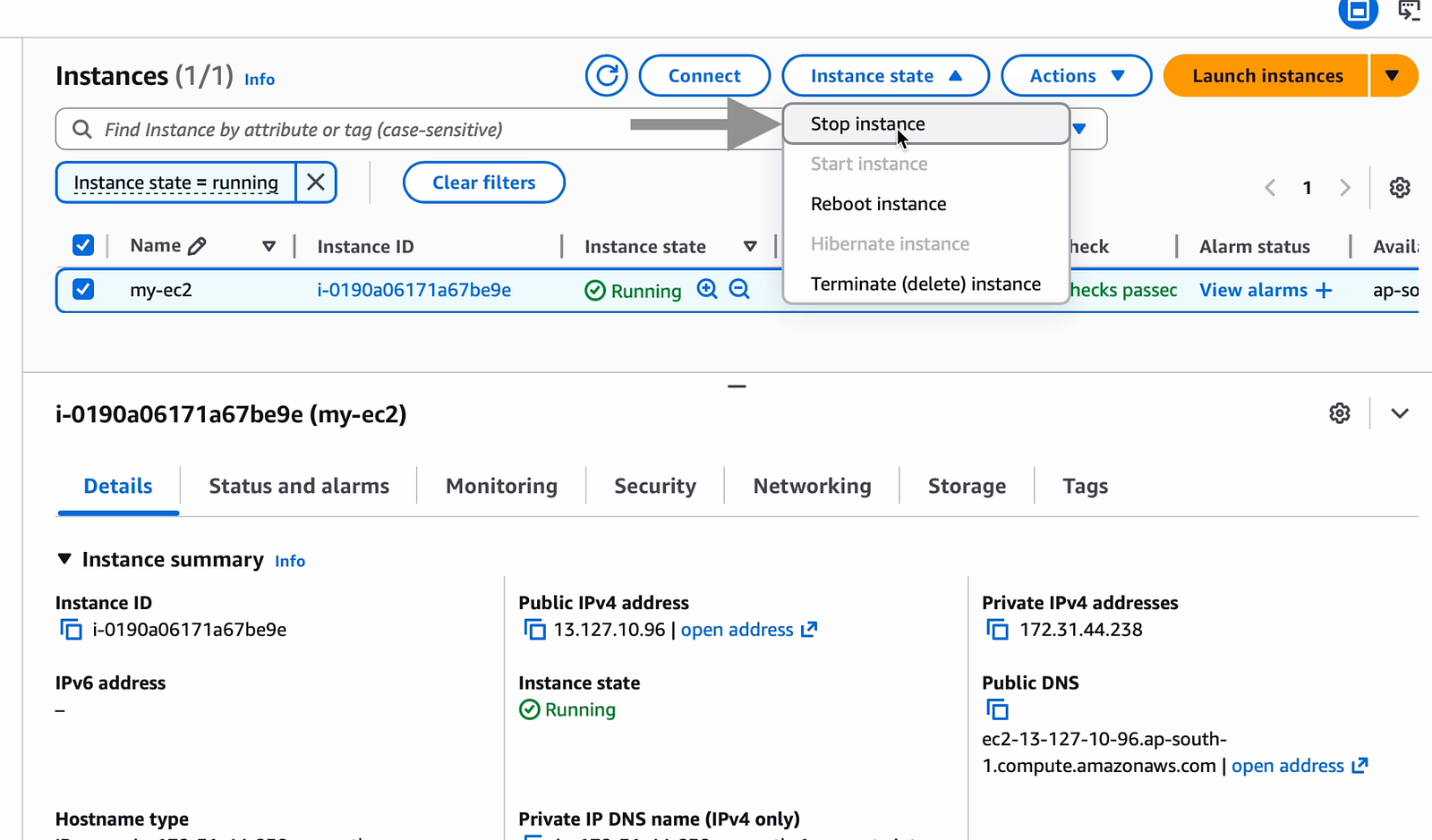
We can stop the instance by selecting our instance and clicking on “Stop instance” under “Instance state”.
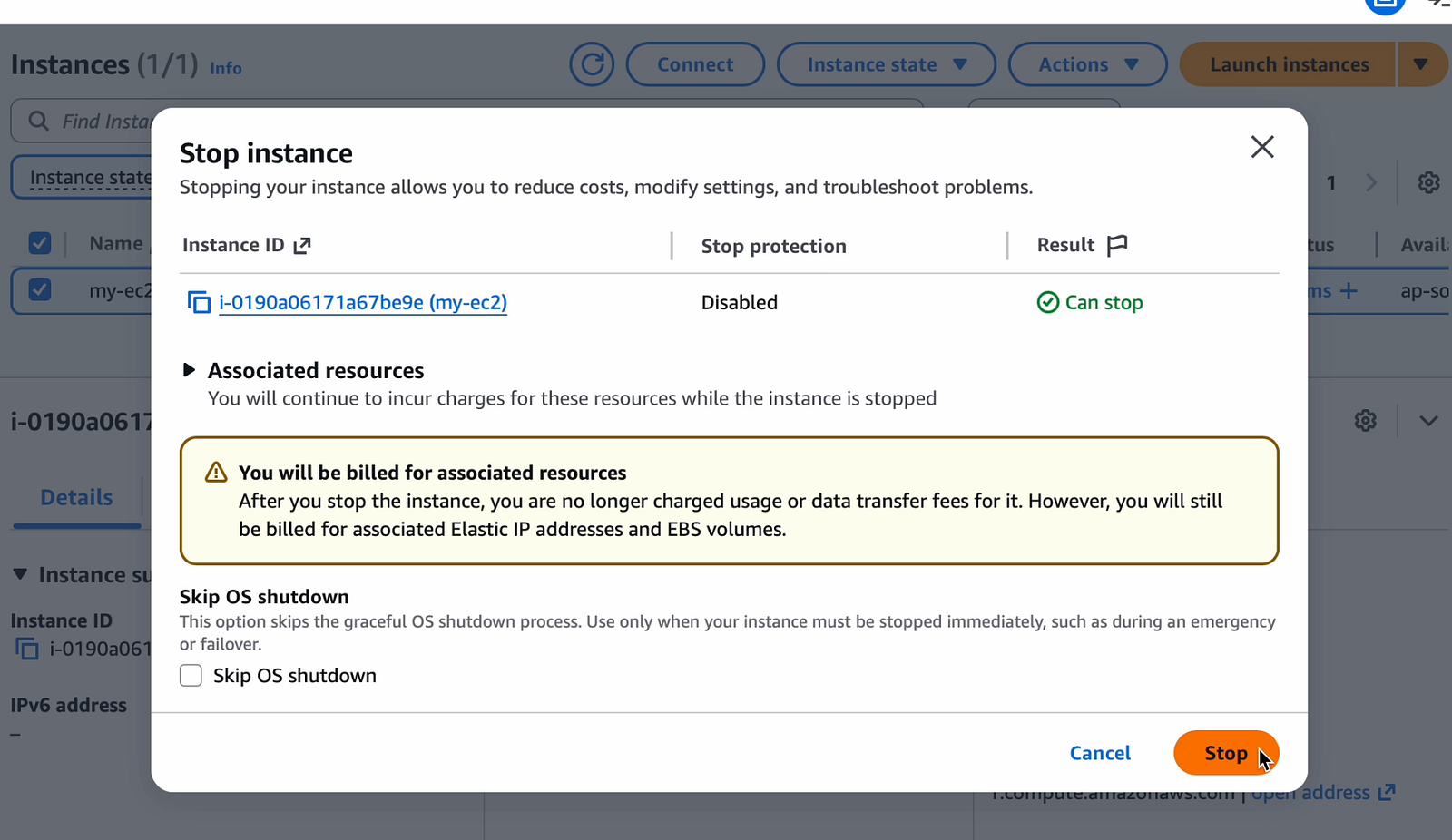
Now, let us terminate the stopped instance to make sure no resources are in use by our AWS account.
Conclusion
And there you have it! We have successfully used the AWS Management Console to create our very first AWS EC2 instance and successfully connected to it from our laptop.
Thanks for reading!
Comments
Post a Comment