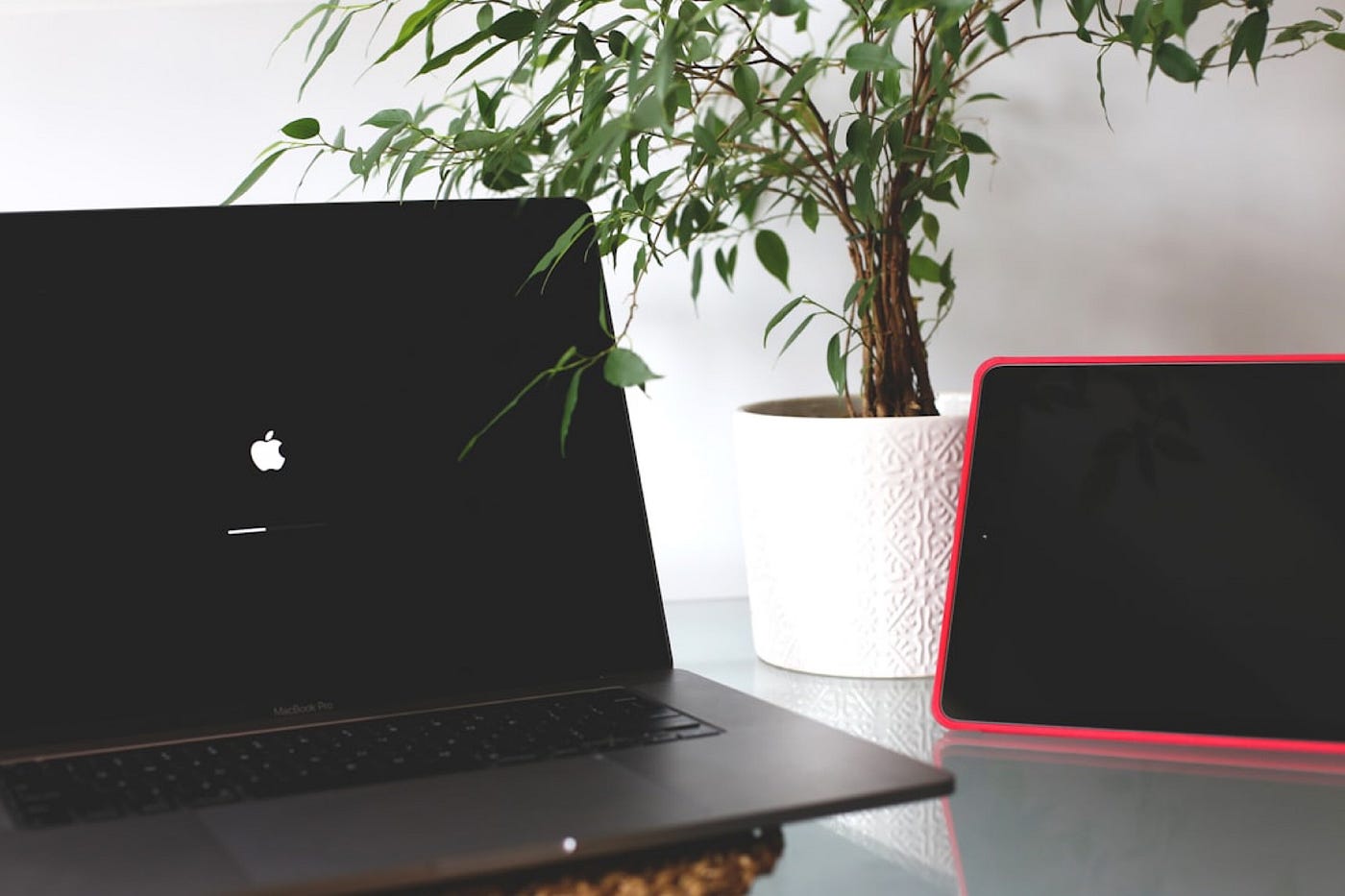
I really love the way Apple’s ecosystem seamlessly integrates MacBook and iPad to increase the productivity of my MacBook. As a professional, it has helped me increase my productivity, allowing me to accomplish more in less time. Here is how you can improve your productivity as a student, professional or creative by using your Mac and iPad together.
1. Using your iPad as a secondary display using Sidecar
- Make sure to use the same Apple ID for your Mac and iPad.
- Ensure that Bluetooth and Wi-Fi are enabled on both devices.
- Sidecar can be used wirelessly, but to keep your iPad charged and for better performance, it is advised to connect your iPad directly to your Mac using the USB-C cable that comes with the iPad.
- Keep your iPad closer to your Mac and go to System settings => Displays => icon and select your iPad to add a display as per my screenshot below.
Note: I am using macOS Sequoia, so the settings might be different if you are using macOS Monterey. For macOS Ventura or later, settings are similar to the ones shown above. For macOS Monterey, it's in go to System Preferences > Displays, click display settings and select your iPad in the sidecar.

- After adding your iPad, you can adjust the display according to where you have kept your iPad on your MacBook using the Arrange button, as per the screenshot.


- Now your iPad is ready as a secondary display.
- Make sure your Mac and iPad meet Sidecar requirements.
2. Universal control
Universal control is a handy feature that helps you use your Mac keyboard and mouse control on your iPad. To enable this, follow the steps below.
- Go to System Settings > Displays > Advanced > and then enable “ Allow your pointer and keyboard to move between any nearby Mac or iPad”
I also recommend you toggle on “ Push through the edge of a display to connect to a nearby Mac or iPad”
(Make sure your iPad and Mac are using the same Apple ID, and you have enabled wifi and Bluetooth.)

- From your iPad, go to Settings > General > Airplay & Continuity > toggle on Handoff and Cursor, and Keyboard.
3. Handoff and continuity
Handoff and continuity add great value to the Apple ecosystem experience.
Handoff lets you start a task in one device and continue it in another.
E.g.: Writing something in your notes app from your Mac and then picking it up from your iPad.
While continuity opens up a wide range of features, like using your iPhone as a webcam or sharing a clipboard with your Apple devices.
E.g., you can copy something from your Mac and paste it it your iPad with simple Cmd+C and Cmd+V or paste option in your iPad.
Below are the steps to enable Handoff and continuity in your Mac and iPad.
- From your iPad, go to Settings > General > AirPlay & Continuity > toggle on Handoff and Cursor and Keyboard.
- From your Mac, go to System Settings > General > Airdrop & Handoff > and toggle “Allow Handoff between this Mac and your iCloud devices

4. Using your iPad for drawing and adding a signature to a document
If you have already enabled Handoff & continuity as per step 3 above, then you can easily use your iPad and Apple Pencil to add a signature to a document that you are writing from your Mac.
Tips: Always make sure your devices are updated.
Always enable iCloud Drive to sync photos, files, etc.
Always use USB-C for Sidecar and file transfer.
Conclusion
By combining your Mac and iPad, you can double your productivity using the Apple ecosystem features like Sidecar, Universal Control, etc. We have far more features when you use Mac and iPad together, but the above 4 are the ones that can help you to start with, and also are the ones that I feel are more capable of doubling your productivity.
Thanks for reading!
Comments
Post a Comment